Award Setup Request Header and Navigation
Select each of the following for information about the Award Setup Request Header and Navigation:
Award Setup Request Header Elements
The header contains the following information:
- Back to list blue arrow, on the far left
- New Award Setup Request default title
- Request ID: Prefix “ASR” with unique 5-digit number, below title
- Request Application (eGC1) ID with link to open
- Award Activity: Workday Award ID
- Note: The Workday Award ID is only visible if the award is Processed or is associated with a Processed Advance.
- Request Status (OSP Setup, OSP Assigned, Processed, etc.)
- Note: OSP can make changes only to items in OSP Setup and OSP Assigned status
- “More actions” menu with drop-down list showing “Add comment” and ”Delete request” (options vary)
The following image shows the Award Setup Request header:

“More Actions” Menu
This menu varies depending on the status of the Award Setup Request.
| Request Status | Add Comment | Change Awarded Application | Assign Request | Delete Request |
|---|---|---|---|---|
| Composing | Yes | N/A | N/A | N/A |
| OSP Setup | Yes | Yes | Yes | Yes |
| OSP Assigned | Yes | N/A | Yes | N/A |
| GCA Assigned | Yes | N/A | Yes | N/A |
| GCA Workday Setup | Yes | N/A | Yes | N/A |
| Routing | Yes | N/A | N/A | N/A |
| Processed | Yes | N/A | N/A | N/A |
| Returned | Yes | N/A | N/A | N/A |
| Withdrawn | N/A | N/A | N/A | N/A |
| Denied | Yes | N/A | N/A | N/A |
The following image shows an example of the “More Actions” menu:
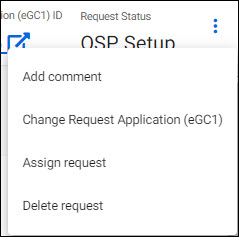
Add Comment
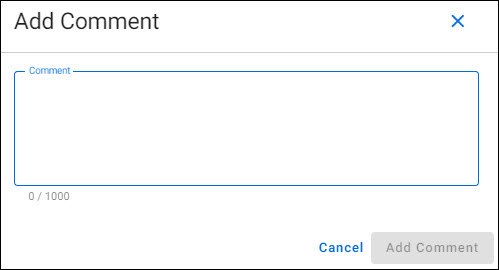
Select “Add comment” to include a comment in the Comments & History section.
The following image shows the Add Comment window. Enter your comment, then select Add Comment.
Change Awarded Application
If the wrong eGC1 was connected to an Award Setup Request:
- While the Award Setup Request is in OSP Setup status, you can change the eGC1
- If the Award Setup Request is in OSP Assigned status, you need to return it to the Award Preparer so they can connect the correct eGC1 to the Award Setup Request
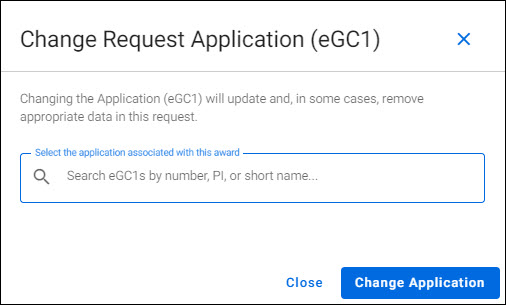
Select “Change awarded application” to replace the currently attached application with a different one.
Note: Changing the associated awarded application will update and, in some cases, remove appropriate data in the Award Setup Request.
The following image shows the Change Awarded Application dialog window:
The values automatically updated from the newly associated application are:
- Short Title
- Full Title
- Sponsor
- Bill To Sponsor
- Originating Sponsor
- Principal Investigator (PI)
Assign Award Setup Request
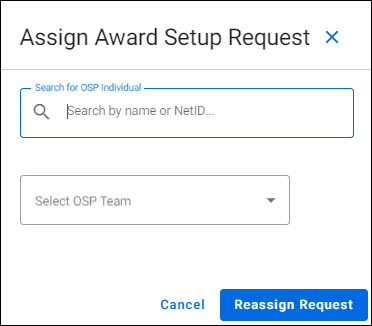
Select “Assign request” to assign the Award Setup Request to an OSP individual and/or team.
The following images show the Assign Award Setup Request dialog window and the Select OSP Team menu:
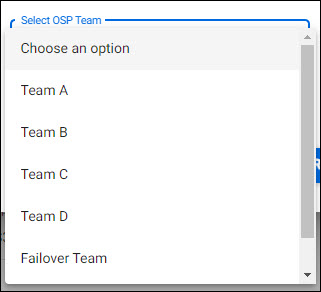
The OSP Team choices are:
- Team A
- Team B
- Team C
- Team D
- Failover Team
- Subcontracts Team
Choose the appropriate assignment and select Reassign Request.
Delete Award Setup Request
Note: You can only delete an Award Setup Request when it is in Composing status.
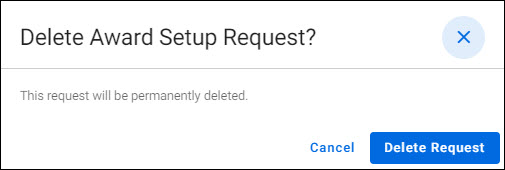
- Select “Delete request” to open the Delete Award Setup Request? dialog window.
- Select Delete Request to confirm the deletion.
The following image shows the Delete Award Setup Request? dialog window:
Award Setup Request Form Sections
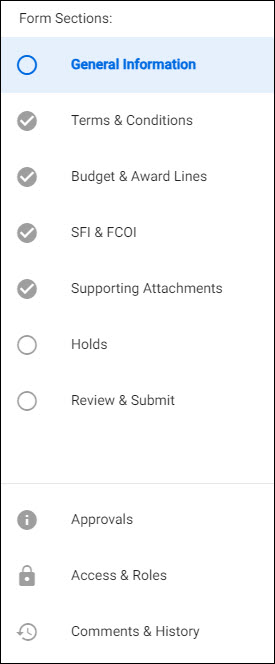
On the left side of the page is the navigation menu, divided into two parts.
From the top part, you can access the Form Sections. The section being displayed will be highlighted. Select any section name to navigate to that section.
Select each of the following for more information:
- ASR General Information
- ASR Terms & Conditions
- ASR Budget & Award Lines
- ASR SFI & FCOI
- Awards Supporting Attachments
- Holds
- ASR Review & Submit
Note: The Fiscal Compliance and Non-Fiscal Compliance form sections are coming soon.
Below the Form Sections are links to Awards Approvals, Awards Access & Roles, and Awards Comments & History.
The following image shows the Navigation Menu. A section with a checkmark indicates it is complete.
Previous and Next Section Buttons for Navigation
At the bottom of each section a button for the Previous Section and the Next Section will appear, as appropriate.

The Form Sections that display vary depending on status. The following table lists what sections appear for each status:
| User | Displays all Form Sections for the following statuses: | Displays only the Request Summary, Approvals, Access & Roles, and Comments & History sections for the following statuses: |
|---|---|---|
| OSP Staff |
|
|
| GCA Staff |
|
|