ASR Review & Submit
Select each of the following to learn more about the Review & Submit form section:
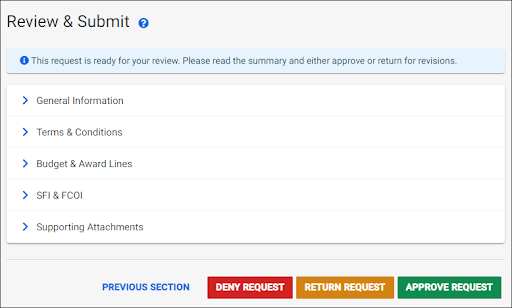
This page displays a read-only summary of the information entered for each section. Use the blue carets (>) to expand each section and view the data.
By default, the General Information section will be expanded when you open this page. Only one section can be expanded at a time. Clicking to expand a different section will automatically collapse the current one.
Below the sections list are several buttons:
- Previous Section displays the Supporting Attachments page
- Deny Request
- Return Request
- Approve Request
The following image shows the page with all of the sections collapsed:
Alert Messages
If any required data is missing, an alert message displays.
The following image shows an example alert message concerning a missing Project Type value:

Deny Request
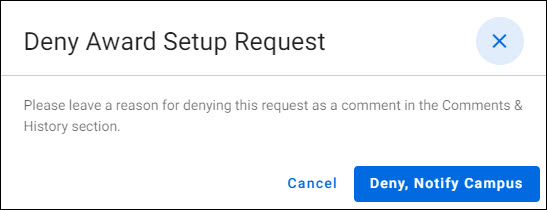
To deny a Request, select Deny Request.
- In the Deny Award Setup Request modal, select the Deny, Notify Campus button
- Enter the reason for denying the request as a comment in the Comments & History section
To cancel the process, select the blue X in the upper right, the Cancel button, or click outside of the modal.
The following image shows the Deny Award Setup Request dialog window:
Return Request
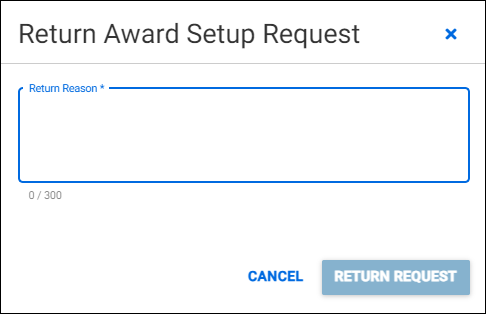
To return a Request, select Return Request.
- In the Return Award Setup Request modal, enter the reason for the return in the text box
- Once a reason has been entered, you can select the Return Request button
- An entry will be added to the Comments & History section
To cancel the process, select the blue X in the upper right, the Cancel button, or click outside of the modal.
Approve Request
To approve a Request, select Approve Request. The status will update to GCA Assigned.
The OSP Reviewer node on the approval flow will display the date approved.