Budget Summary
The Budget Summary consists of these four sections:
Header
The page header displays the title of “Budget Summary”. The summary includes all of the worksheets in your budget.
Salary and Benefit Costs
This section includes all of the costs related to personnel. The default view displays Salary, Benefits on Salary, and for anyone who receives sea pay, the Sea Pay and Benefits on Sea Pay values.
Choosing display fields
Use the drop-down menu with the label “Displaying x of y fields” (to the far right of the section title) to adjust the amount of detail you wish to see for each personnel line item.
Field choices are:
- Salary: the person’s Total Requested Salary
- Benefits on Salary: the person’s Total Benefits
- Salary + Benefits on Salary: the calculated sum of Salary and Benefits on Salary
- Annual Base Salary: the person’s Monthly Base Salary * 12
- Person Months (C/A/S): the number of months of effort for Calendar, Academic, or Summer
- Percent Effort (C/A/S): the percent effort for Calendar, Academic, or Summer
- Sea Pay: the amount of Sea Pay = Sea Pay Hourly Rate * Hours of Sea Pay
- Benefits on Sea Pay: the calculated amount of benefits on Sea Pay
- Sea Pay Hourly Rate: the calculated value = Adjusted Monthly Base Salary / 173.3 work hours in a standard month
- Hours of Sea Pay: the person’s number of hours
The menu also has options to Check All and Un-Check All. Each time you return to the Budget Summary, the display will reset to the default view.
The following image shows the expanded view of the drop-down menu.
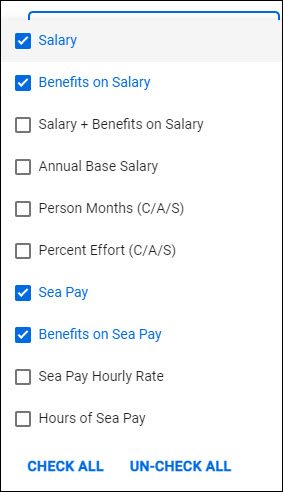
Table columns
The personnel table displays a column for Name, one column for each period, and an All Periods totals column. Each Period column heading includes its Period Description and Start and End Dates.
The following image shows an example of this section of the page.
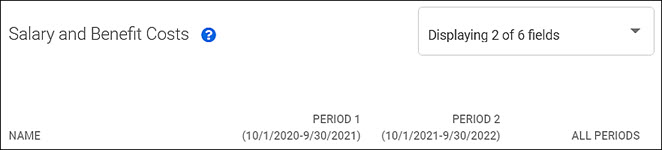
Table rows
Personnel role section entry
The personnel list is grouped by role type, with a totals row for each role. In the Name column, the role name is followed by a count in parentheses of the number of personnel with that role.
By default, NIH designated “Key Personnel” roles, based on the RR Detailed Budget form, are displayed in expanded view. All other roles display in collapsed view, which shows just the totals row. You can use the blue caret to the left of the role section name to expand or collapse a section.
The row for each role section displays the data totals for all personnel with that role for each period and All Periods.
The order of the role sections on the Budget Summary page is:
- Principal Investigator
- Application PI
- Multiple PI
- Mentor
- Co-Investigator
- Faculty
- Key Personnel
- Post Doctoral Associate
- Graduate Student
- Research Scientist
- Secretarial/Clerical
- Undergraduate Student
- Other
- No Role Selected
Individual personnel entry
Within a role section, personnel are listed in alphabetical order by last name, then first name.
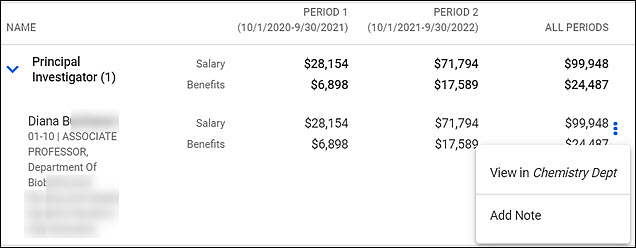
For each person, the following information displays in the Name column:
- First and Last Name
- The Note icon, if applicable – on mouse hover, displays the Note contents
- The Sea Pay icon, if applicable – on mouse hover, displays “Receives Sea Pay”
- Object/Sub-object code combination
- Job Title and Department
Corresponding values for the fields you have chosen to display appear for each period and All Periods column.
To the right of the All Periods column, a “more options” menu icon appears. The icon is three, blue vertical dots. The menu choices are:
- View in [title] Worksheet – where “title” is the name of the worksheet which includes that person
- Add Note – if no note exists
- Edit Note -if there is an existing one
- Delete Note – if there is an existing one
The following image shows an example personnel entry for a Principal Investigator.
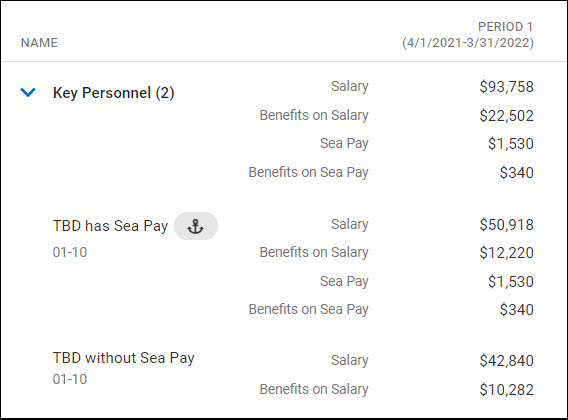
If any personnel have sea pay, additional rows will be added to show Sea Pay and Benefits on Sea Pay values for that individual. These rows are selected by default when you open the Budget Summary. The following image shows an example of two placeholder personnel, one with sea pay, one without for Period 1.
Salary & Benefit Costs Total entry
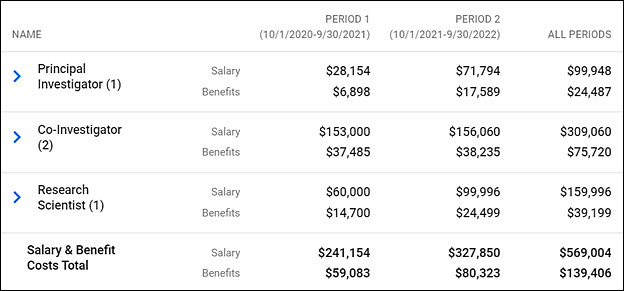
This row displays the period totals for all personnel, for all of the fields you selected to include. For the All Periods column, just the totals for Salary, Benefits, and Salary + Benefits appear, depending on your selections.
The following image shows this entry.
Other Costs
Table columns
The section displays a column for Description, one column for each period, and an All Periods totals column. Each period column heading includes its Period Description and Start and End dates.
The following image shows an example of this section of the page.
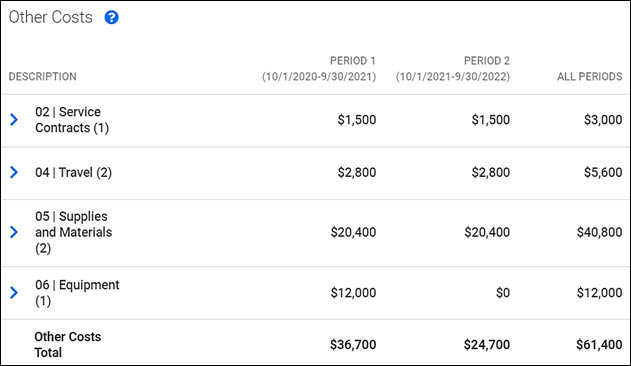
Table rows
Other costs section entry
Entries in this section display in ascending order by object code, with a section row for each code. In the Description column, the object code and its description are followed by a count in parentheses of the number of entries for that object code. The section entries display as collapsed by default. Use the blue caret to the left of the description to expand a section.
Individual cost entries
When you expand a cost section, you will see one row per cost entry. The order of the items within an object code is:
- Ascending by sub-object code
- Within sub-object code, alphabetically by the description you entered
For each object/sub-object code entry, the following information displays in the Description column:
- User-entered description, followed by the Note icon, if applicable. “No description provided” will appear if you did not enter one.
- The object code and sub-object code, with its system description
Corresponding values will display in each period column and the All Periods columns.
To the right of the All Periods column, a “more options” menu icon appears. The icon is three, blue vertical dots. The menu choices are:
- View in [title] Worksheet – where “title” is the name of the worksheet which includes that entry
- Add Note – if no note exists
- Edit Note -if there is an existing one
- Delete Note – if there is an existing one
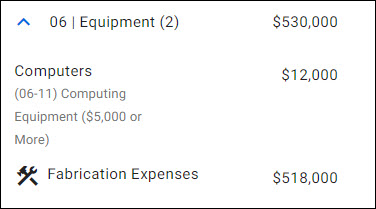
The following image shows an example of an other costs entry for 06 Equipment. When expanded, you can see entries from the primary worksheet and a Fabrication worksheet.
Note:
- The totals from a Subaward worksheet roll up to an 03 Other Contractual Services entry on the Budget Summary display. The entry displays the worksheet title in the Description column.
- The totals from a Fabrication worksheet roll up to an 06 Equipment entry on the Budget Summary display. The entry displays the worksheet title in the Description column.
- If you have enabled APL, this section will also contain a 19 APL entry for APL Prorated Direct Cost (19-10).
Other Costs Total entry
This row displays the total of all Other Costs for each period and the All Periods column.
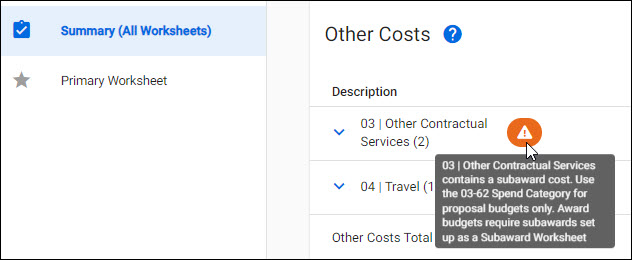
Note: When you add an 03-62 Object/Sub-object code on either the Primary Worksheet or an Internal worksheet, an alert will display: Use 03-62 for proposal budgets only. Award budgets require subawards set up as a Subaward Worksheet. The following image shows this alert:
Project Totals
Table columns
The section displays a column for Description, one column for each period, and an All Periods totals column. Each period column heading includes its Period Description and Start and End dates.
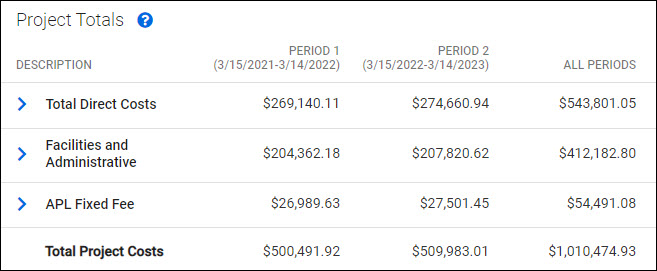
The following image shows an example of this section of the page, with all possible entries.
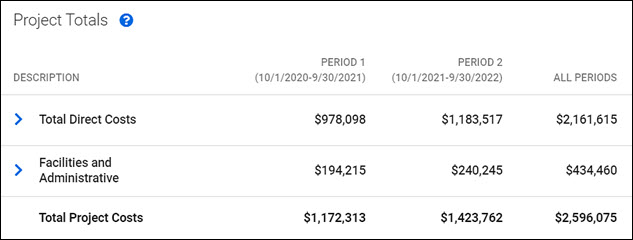
Table rows
Total Direct Costs section entry
This row shows the calculated totals of all direct costs for each period and All Periods. By default, it is collapsed. Use the blue caret to the left of the section name to expand it.
When expanded, you will see the Total Direct Costs less Subrecipient F&A and, if you have any subaward worksheets, the total Subrecipient F&A amount. These two values add up to the Total Direct Costs.
Facilities and Administrative section entry
This row shows the total calculated F&A costs for each period and All Periods. By default, it is collapsed. You can use the blue caret to the left of the section name to expand it.
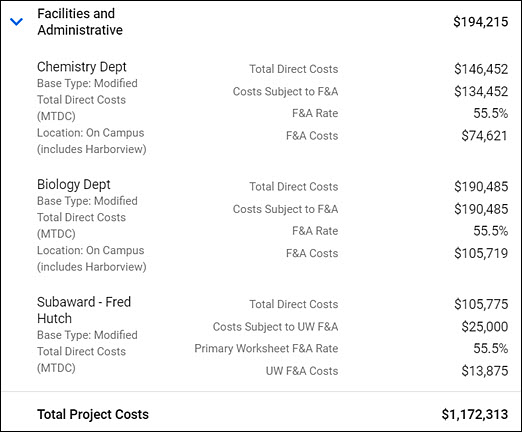
When expanded, you will see an entry row for the primary worksheet and any Internal UW worksheets. The entries display in the order the additional worksheets were added.
For each worksheet, the Description column will display its Title, Base Type, and Location. For each period and the All Periods column, the following values are displayed:
- Total Direct Costs
- Costs Subject to F&A
- F&A Rate
- F&A Costs
To the right of the All Periods column, a “more options” menu icon appears. The icon is three, blue vertical dots. The menu choice is View in [title] Worksheet – where “title” is the name of the worksheet which includes that entry.
The following image shows an example of this information for the first period of a budget with two additional worksheets, one internal and one subaward.
Note for Subaward Worksheets and F&A
- The F&A on a subaward worksheet is the F&A of the subrecipient (not the UW), and as such, does not show up as a separate line on summary F&A section.
- The full amount of the subaward (their F&A included) is subject to UW F&A.
- If the base type is MTDC, then only the first $25,000 of a subcontract is subject to F&A.
- If the base type is TDC, then the full amount of a subcontract is subject to F&A.
- Review Budget Calculation Formulas for details on how values are calculated.
APL Fixed Fee
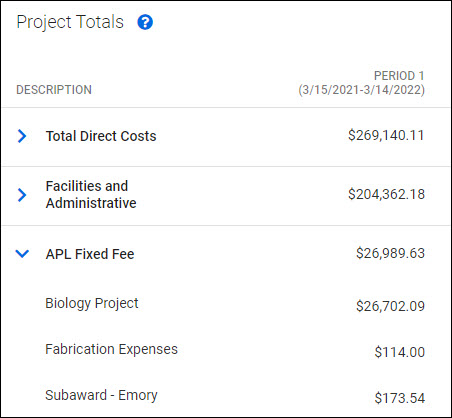
The following image shows the project totals for the first period of the budget with the APL Fixed Fee section expanded. The section includes rows for the primary worksheet, a fabrication worksheet, and a subaward worksheet.
Total Project Costs
This row shows the overall total for each period and All Periods, as shown in the following image of the Project Totals section.