Targets & Caps Tab
Targets & Limits
If the Enable Targets & Limits check box is selected, values for all of the other fields will display.
The following image shows the check box selected and the default values for each field, as described below.
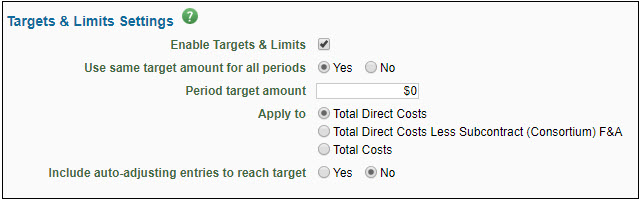
Use same target amounts for all periods
- The default value is Yes. A value of No allows a different target for each period.
Period target amount
- The target amount(s) for each period.
Apply to
- Indicates which budget amount is targeted:
- Total Direct Costs only
- Total Direct Costs Less Subcontract (Consortium) F&A
- Total Costs
Include auto-adjusting entries to reach target
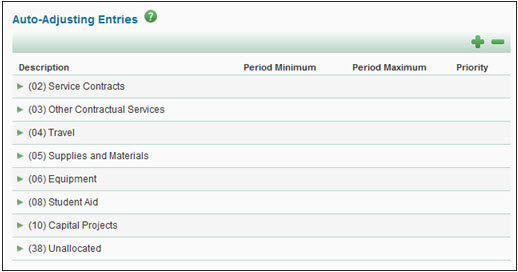
- If Yes is selected, the Auto-Adjusting Entries section will display, as described below.
Auto-Adjusting Entries
SAGE Budget allocates funds to non-personnel costs based on the budget target and prioritization order. This function is generally used to optimize the funds available in specific areas.
Expand any of the line items to view the values.
In the setup dialog, the entry Description will display followed by the selected UW Sub-Object Code.
Each line item has a period minimum and maximum amount and a priority. More than one item may have the same priority. This dialog is shown in the following image.
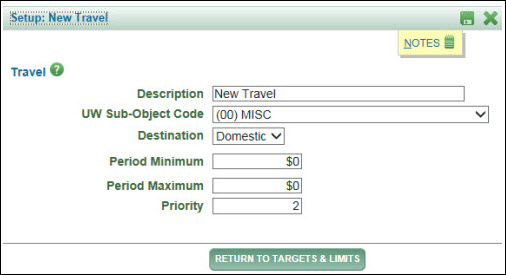
When the total is less than the targeted amount, the system first adds the minimum amount for all lines. It then adds dollars to each entry up to its maximum if possible.
Note: SAGE indicates auto-adjusting entries on your worksheet by displaying a “TL” icon before the line item description.
Salary Cap
A custom salary cap is used when the sponsor requires one. From the worksheet, you can see what the cap is, and which personnel exceed it. In the details for individual personnel, their total uncapped salary displays in addition to their capped total for improved transparency. For details, see the Salary and Wages Update Periods article.
If the Enable Salary Cap check box is selected, two additional fields will display, as shown in the following image.
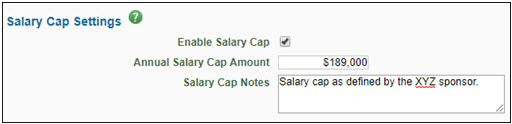
- Annual Salary Cap Amount: The maximum allowable salary amount specified by the Sponsor.
- Salary Cap Notes: An optional field for any reference notes.