Award Requests List
Selecting the View List of Requests link on the landing page opens this list.
The Award Requests page displays Award Setup Requests and Modification Requests in process.
It also allows you to:
- Search for a request
- Filter the list
- Initiate a new Award Setup Request or Modification Request
For additional information, also see the GCA Award Setup research website page.
Request List Display
The following image shows the header and a few columns and rows of the Award Requests page:
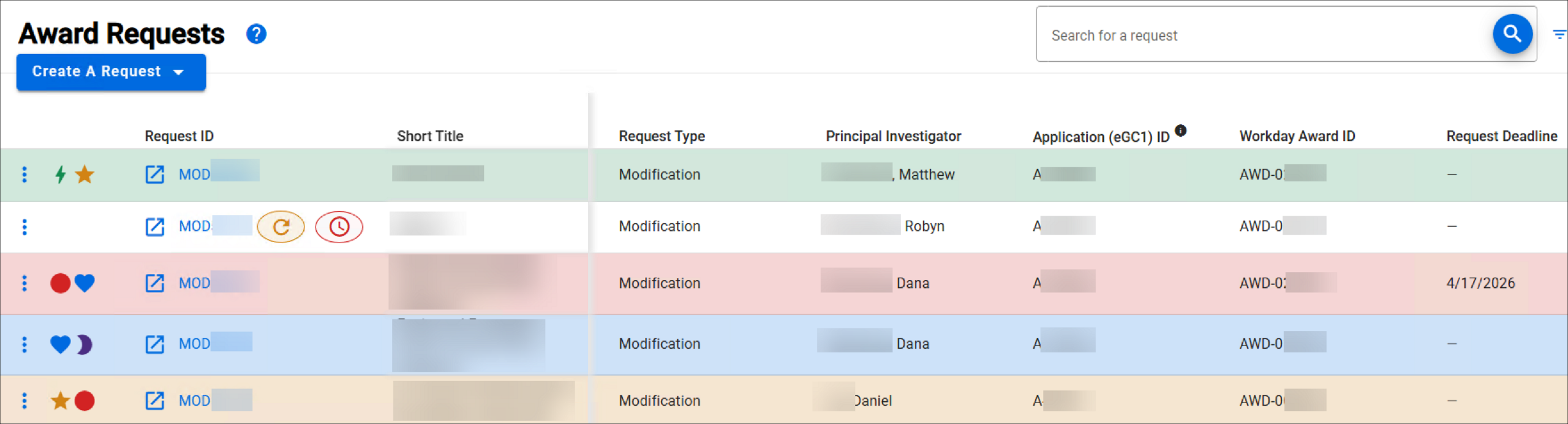
For each existing request, the list displays the following information. You can scroll to the right to see all of the columns.
Note: The Request ID and Short Title columns are “frozen” so that they always display.
Fields without a value will display an “em” dash (—). The order and available fields in the Award Requests list campus view may slightly differ, but the field names remain the same.
| Field | Description |
|---|---|
| Request ID (doesn’t scroll) |
|
| Indicator |  Request is on hold; indicator’s hover text reads “On hold, review comments”  Campus has resubmitted the request |
| Short Title (doesn’t scroll) |
|
| Request Type | Values:
|
| Principal Investigator | The principal investigator for the request |
| Request Application (eGC1) ID | eGC1 Application associated with the request |
| Workday Award ID | The Award ID for this request |
| Request Deadline | [Date] |
| Request Status | Values:
|
| Request Status Date | Date the status changed, for example: 12/06/2023, 9:42 AM |
| Request Amount | The Sponsor Total Amount for Spending Periods for the request |
| Sponsor Name | Sponsor name for the award |
| Sponsor Award Number | Number assigned by the sponsor |
| Prime / Originating Sponsor Name | The original source of funding (not visible in campus view) |
| Cost Center | The associated cost center (not visible in campus view) |
| OSP Individual Assigned | Individual’s name |
| OSP Team Assigned | Team |
| GCA Individual Assigned | Individual’s name |
| GCA Team Assigned | Team |
| Request Created Date | Date and time, for example: 12/01/2023, 5:12 PM |
 to open the item in a new browser tab
By default, there are 25 items listed on a page. If you have more than 25, the system will add pagination links. You can also select ten or 50 items per page.
Search for a Request
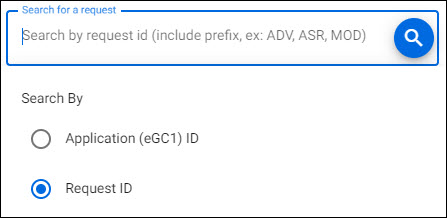
Click in the search box to display the Search By menu. Select either Request Application (eGC1) ID or Request ID, then enter your ID value. Press the Enter key or select the search icon (magnifying glass) to start the search. The search looks for matches that start with the characters entered. Note that the ID requires the prefix(A, ADV, ASR, MOD).
The following image shows the search menu options with the default Request ID selected:
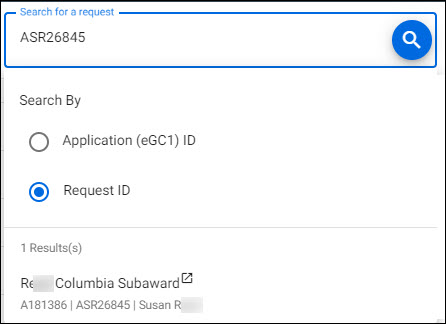
The results display below up to ten items, in order by most recent creation date. You will see two lines of information for each result:
- First Line: Short Title or “No Short Title Available”
- Second Line: Application eGC1 ID |Request ID | PI First Last Name (if available)
The following image show an example result:
Click on the desired item to open it in a new browser tab. The list will include items you have read-only or edit access to.
If no matches are found, the following text displays:
- No Matches. Try a different search term or choose another option to Search By.
Note: the search icon (magnifying glass) is always enabled. This means you can enter a different value and start a new search at any time.
List Filtering Options
To filter the list of award requests, select Filter List at the upper, right of the page to open the Filter Requests panel. Selecting the Filter List button again, or the X in the upper-right corner, closes the panel. The following image shows the Filter List button:

This displays the filtering options of By Award, By Principal Investigator, By Assignment, By Status, and By Request Type. You can select a combination of one or more values from the lists for your filter. A selected value will be highlighted in blue and have a checkmark.
To remove a value from the filter, select it again. To close the filter list, select Filter List a second time or select the X in the upper-right corner.
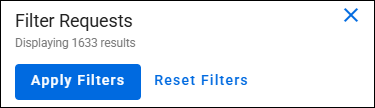
Once you have chosen all of the desired filter values, select the Apply Filters button to display the tasklist with all those filters applied. The number of results displayed based on your filtering selections will be indicated.
Select the Reset Filters button to remove all filtering. This will leave the Filter List panel open, and will refresh the tasklist to display the full list of requests.
The following image shows the Apply Filters and Reset Filters buttons:
By Award Section
For the By Award section, enter the Workday Award ID and select the search icon (magnifying glass) on the right. A list of results will display, as shown in the following image:
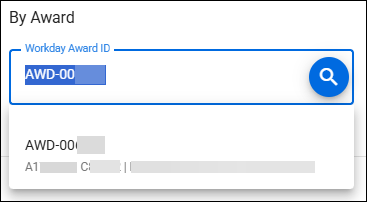
Select an award from the list and then select Apply Filters to see a list of all items associated with the specific award.
By Principal Investigator
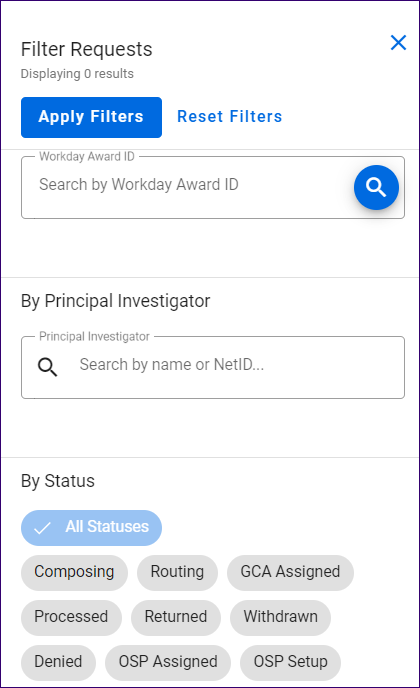
To search by Principal Investigator, enter the person’s name in the search box. You can enter the name as First Last or as Last, First. Select the person from the results list.
The following image shows this section:
By Assignment Section
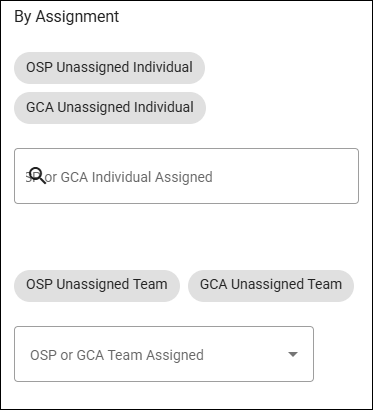
Values for By Assignment are:
- OSP Unassigned Individual
- GCA Unassigned Individual
- Search box for: OSP or GCA Individual Assigned
- OSP Unassigned Team
- GCA Unassigned Team
- Dropdown menu for: OSP or GCA Team Assigned – Select one team
- None – select to clear the previous choice
- OSP Teams
- Bothell
- Central Ops
- Failover Team
- Federal Assistance Intake
- Non-Federal Intake
- RRF Team
- Subcontracts Team
- Team A
- Team B
- Team C
- Team D
- GCA Teams
- GCA – Award Setup Team – Complex
- GCA – Award Setup Team – On Hold
- GCA – Award Setup Team – Simple
- GCA – Cash Application
- GCA – Complex Grants Team
- GCA – Complex Grants Team – On Hold
- GCA – Compliance
- GCA – GCA Corresponding with OSP
- GCA – GCA Shelf
- GCA – GCA – Closing Team
The following image shows this section of the Filter Requests panel:
By Status and By Request Type Sections
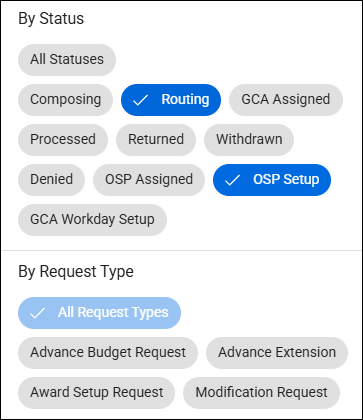
Values for By Status are:
- All Statuses
- Composing
- Routing
- GCA Assigned
- Processed
- Returned
- Withdrawn
- Denied
- OSP Assigned
- OSP Setup
- GCA Workday Setup
When you select Reset Filters, default values will display.
- For OSP, the values are OSP Setup and OSP Assigned
- For GCA, the values are GCA Assigned and GCA Workday Setup
Values for By Request Type are:
- Advance Budget Request
- Advance Extension
- Award Setup Request
- Modification Request
The following image shows the Status and Request type sections of Filter List with some values selected:
You cannot save any filter presets. If you select a filter, navigate to a new page, and then return to the Award Request List, those filters will no longer be selected.