Request Summary: Budgets
The GCA view of the Request Summary includes the Budgets section, which is where you will set up budget numbers and notify campus.
The table includes the following fields:
- Type of Budget
- Biennium
- ADV BN
- Prior BN
- Short Title
- PI Name
- Org Receiving Funding
By default, the Prior BN, Short Title, PI Name, and Org Receiving Funding fields are auto-populated based on the associated application and funding action.
The following image shows the Budgets section for a new advance before a budget number is assigned.
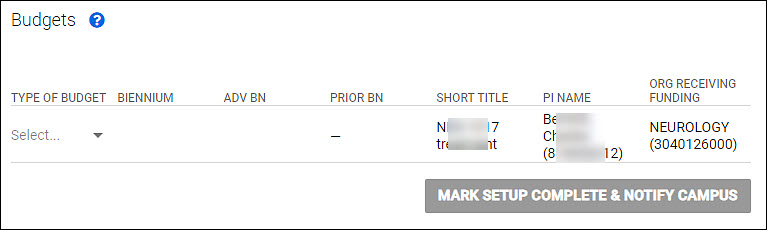
Budget Setup For New Advances
Follow these steps to complete the budget setup process:
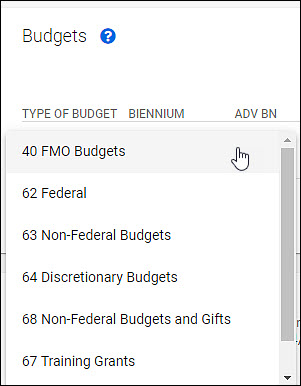
- Click the Type of Budget drop-down menu to assign the budget type. NOTE: Once the budget type is selected, the Biennium and ADV BN will automatically be filled in.
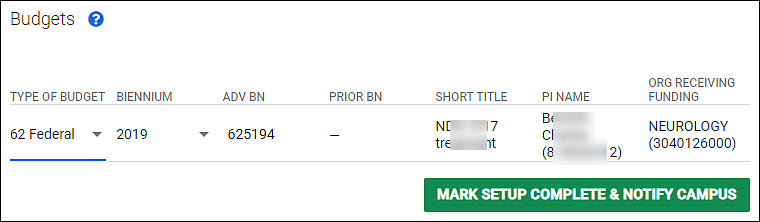
- Enter the ADV BN and other required information into FIN.
- Click the green Mark Setup Complete & Notify Campus button.
- Once you click Mark Setup Complete & Notify Campus, a dialog box appears with a reminder to make sure all budgets associated with the request are set up in FIN before notifying campus. If your budgets are set up in FIN, click the blue All Set, Notify Campus button. If you are not ready to notify campus, click Cancel.
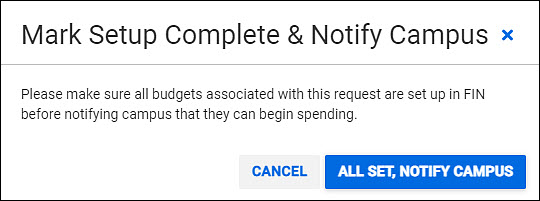
- Once you click All Set, Notify Campus , the header will automatically update to include the Advance Budget number and the status will update to Processed.
NOTE: You can navigate away from the Budgets section prior to completing the budget setup. All of the information you have entered will automatically save. The advance request will remain in GCA status, and the last action taken will update to Budget# Assigned/Confirmed.
Edit an Assigned Budget Number
The advance budget number can be updated to any budget number prior to marking the setup complete.
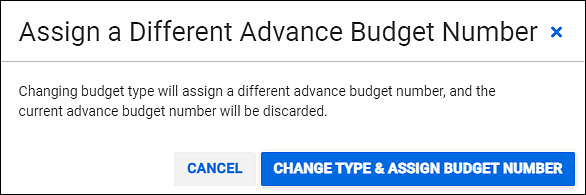
If a different Budget Type is selected, a confirmation message will appear, confirming that you want to change the type and assign a new budget number.
Budget Setup for Renewals
Advance budget renewal requests can be submitted for parent budgets with and without sub budgets.
In this case, the advance budget request for the parent budget is listed first on the Budgets section, and any sub budget requests will follow.
NOTE: The Prior Budget Number details for renewals are listed in the General Information Section.
To set up and edit budget numbers for renewals, follow the same steps (1-5) outlined for setting up new advance budget requests.
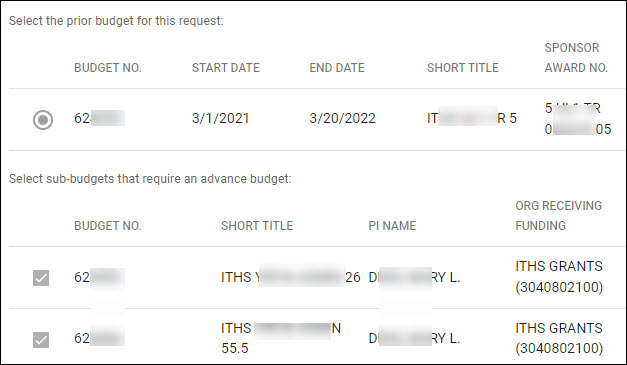
The following images shows a renewal with sub budgets selected.