Human Subjects Division
Apply for Review- UW Reviewing for UW Only

Table of Contents
- Before You Begin
- Steps for Submitting
- Overview
- Step 1: Set Up Zipline Access (One Time Only)
- Step 2: Complete Word-Based Application Form
- Step 3: Prepare Other Documents
- Step 4: Create Study Record in Zipline
- Step 5: Add Faculty Advisor Review (Students and Medical Residents Only)
- Step 6: Check Application for Completeness
- Step 7: Principal Investigator (PI) or PI Proxy Must Submit
- What to Expect After Submitting
Before You Begin
Do you need to submit an IRB application?
Depending on the particulars of your project, you may not need to submit an IRB application at all! For more information:
Are you on the right application path?
Follow the instructions on this page if:
- The research may be exempt (HSD must make this determination), and/or
- The research involves only the University of Washington, or
- Other institutions are involved, but UW will not review on their behalf (for example, the UW IRB generally does not review for the VA).
Most student applications follow this application path. For more information:
- Zipline Application Paths
- Contact the HSD team that reviews for your department with questions
Are you a student or medical resident who will serve as the principal investigator on an IRB application?
Students and medical residents who serve as the PI on an IRB application must complete the IRB 101 online tutorial and obtain faculty advisor sign off on their application. HSD strongly recommends completing the IRB 101 online tutorial before completing your application. For more information:
Steps for Submitting
Overview
All applications must be submitted via Zipline, UW’s eIRB system. Zipline is a document management system where you upload your application form and other study documents and fill out a series of electronic SmartForms. For definitions of Zipline terms:
The order of the application steps is flexible. You may find it better to create the study record in Zipline and then complete the Word-based IRB application form, especially if you plan to be a PI proxy for a study.
Everyone who needs access to the Zipline application must complete a one time self-registration process in Zipline before they can be added to the application. Each person must be added to the application before they are able to access it. This includes:
- The principal investigator
- Any study team members who will need to view or edit the application
- Faculty advisors (for student and medical resident applications)
A UW NetID is required to register. For more information:
All applications must include one of the following application forms. Use the most recent version of the form, available on the HSD website and in Zipline. Upload documents in Microsoft Word format. UW offers Microsoft Office to UW students, faculty, and staff at no charge.
- IRB Protocol Form: Standard application form used to request review from HSD or the UW IRB.
- IRB Protocol Form, No Contact: Shortened version of the standard IRB application form that may be used for studies that do not involve interaction of any kind (in person, email, internet, social media, etc.) with subjects.
IRB Protocol Tips
- The IRB Protocol has sections based on topic. The first time you complete the form, scan the questions so that you know what is coming and don’t duplicate information.
- Use the instructions and examples embedded within the form to help answer questions you may have about completing various sections.
- If you think that your research may qualify for a determination that it is exempt or is not human subjects research, only answer the questions labelled [DETERMINATION] on the IRB Protocol. If HSD staff determine that additional information is needed, they will ask you to complete additional questions.
- Reference other documents in the application, such as grant applications or study protocols, if they provide the needed information and are attached to the electronic application.
- The IRB Protocol is a living document that gets updated to provide complete and accurate information about your approved research activities. Use tracked changes to make changes requested by the IRB and to modify your study.
We recommend preparing all study documents before creating your application in Zipline. The SmartForm instructions table under Create Study Record in Zipline lists documents you may need to upload. Upload documents in Microsoft Word format whenever possible.
Once your documents are ready, login to Zipline to create a new study record, complete the SmartForm application, and upload the study documents.
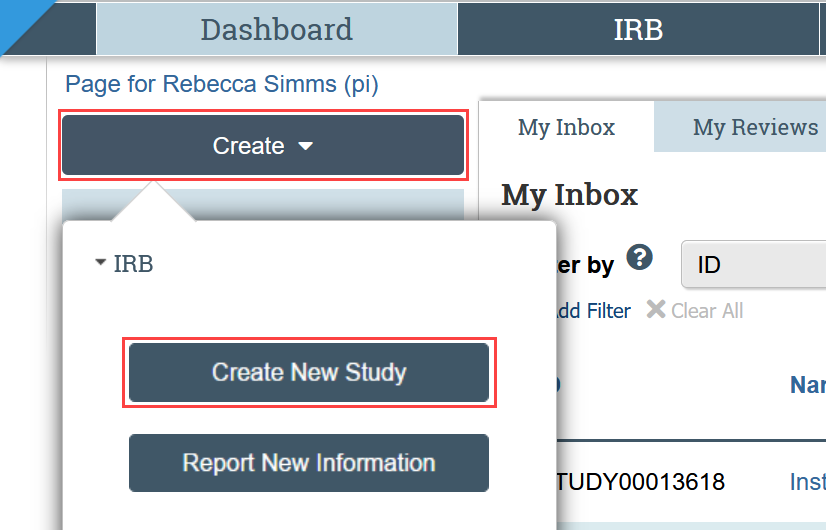
To create a new study record, select Create New Study from the menu:
General Tips
- Use the help bubbles throughout Zipline for additional context if you’re unsure how to answer a question.

- Navigate through the application sequentially by selecting Continue at the bottom of each page.

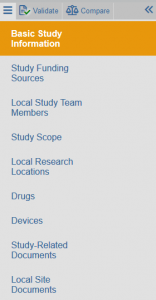
- Jump between pages using the left‑hand navigation menu when you need to review or update specific sections.
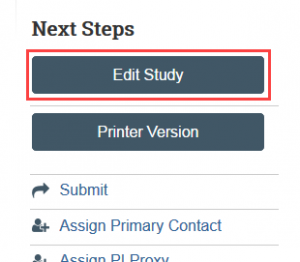
- Save your progress and return later by selecting Save and Edit Study if you need to complete the application in multiple sessions.
SmartForm Instructions for UW Reviewing for UW Only
| SmartForm Page & Attachments | Tips & Guidance |
|---|---|
| Basic Information SmartForm Page Attachments:
|
The Basic Information page should indicate that:
The IRB Protocol must be uploaded in Microsoft Word format. No other documents should be uploaded in this question. An attachment is required to save the application. |
| Study Funding Sources SmartForm Page Attachments:
|
For funding administered through UW:
|
| Local Study Team Members SmartForm Page No attachments |
Can’t find someone on the list? Make sure they are registered in Zipline.
Add everyone who needs access to the application, including anyone who should be designated as a PI proxy. People must be listed on this page in order for the PI to designate them as a proxy. Students/medical residents: Do not list your faculty advisor. Adding your faculty advisor on this page prevents them from completing faculty advisor review of your application. |
| Study Scope SmartForm Page No attachments |
If you are unsure how to respond to a question, use the help text for additional guidance. |
| Local Research Locations No attachments |
If your research location is not listed, select Other.
If your research consists solely of obtaining records, specimens, or other information without interacting with participants, select No direct interaction with participants. |
| Drugs SmartForm Page (if applicable) Attachments:
|
Identify all drugs to be used on human subjects as part of this study, including all investigational new drugs (INDs). An IND number is assigned by the FDA to a drug that the FDA allows to be transported across state lines for use in clinical studies prior to marketing approval. For each IND number, attach one of the following:
|
| Devices SmartForm Page (if applicable) Attachments:
|
Identify all devices to be evaluated for safety and effectiveness or used as an HUD on human subjects. Include all information the IRB needs to identify and evaluate any device with exemptions or claimed exemptions. Also, attach information from the study sponsor or the FDA verifying the exemption status of each exempt device.
If you do not plan to submit your data to the FDA, but your study is evaluating the safety or effectiveness of a device, include the Devices supplement and any visuals that may help the IRB to evaluate the use of the device and it potential risks. |
| Local Site Documents Page Attachments:
|
Consent forms:
Recruitment materials:
CVs, training certificates, and other documents:
|
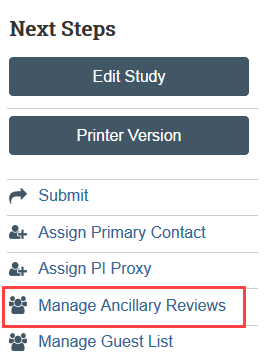
The Manage Ancillary Review activity is used to obtain and document faculty advisor review when a student or medical resident is the principal investigator (PI) for the IRB application. Do not add the faculty advisor to the study team on the Zipline application before the faculty advisor has submitted the faculty advisor review. The system will not allow a member of the study team to submit an ancillary review for the study.
The faculty advisor review may occur concurrently with HSD or IRB review of an application. However, final IRB approval will not be issued until the required faculty advisor review is completed.
Your faculty advisor will receive an email notification when the application is submitted to HSD and can complete their review using step-by-step Faculty Advisor Review instructions. For more information:
- FAQ: What are the additional requirements for student and medical resident researchers?
- Add Faculty Advisor Review steps
Checking the application for errors and omissions helps you to include all the relevant information, which is essential for receiving a timely review of your study. Automatic system error checking identifies any omitted answers to questions that are required for every application. A red asterisk (*) indicates required questions.
HSD also recommends looking over the forms to see what you may have missed, especially:
- Questions that are relevant to your study but are not required for all studies (no asterisks)
- Documents that should be attached
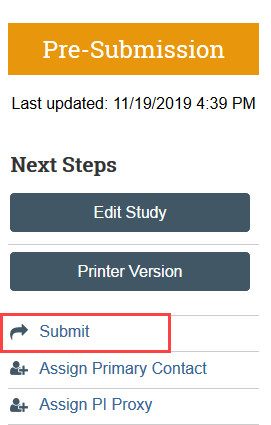
The Submit activity must be completed once the application is ready to go to HSD. This activity:
- Must be completed by the PI or the PI Proxy
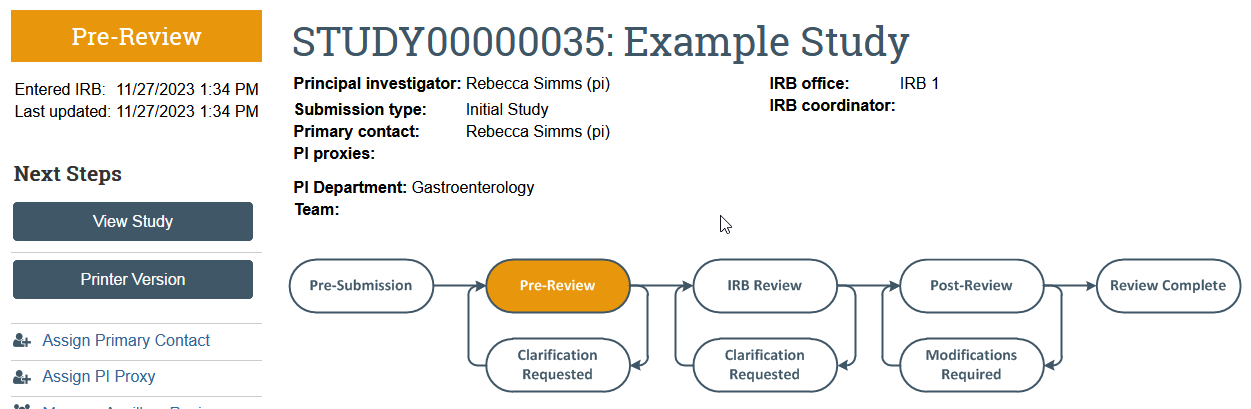
- Changes the application state from Pre-Submission to Pre-Review
- Sends the item to HSD for review
- Removes the study team’s ability to make edits while the study is in review unless HSD requests more information or a change to the study
What to Expect After Submitting
An HSD staff member will be assigned to your application as the IRB coordinator. The PI, any PI proxies, and the primary contact will receive email notifications:
- If HSD staff need additional information or changes to complete the review
- To inform you about the outcome of the review, including a formal determination letter with more information
You can check the application status in the study workspace in Zipline at any time.