Grant Runner
Campus preparers can create proposal applications to Grants.gov agencies in two ways.
- For an Adobe PDF Submission, the preparer downloads the opportunity form set from Grants.gov, fills it in, and then attaches it to a standard eGC1 application. OSP submits it through the Grants.gov portal.
- For a Grant Runner (GR) application, the preparer uses the “Create a New eGC1” wizard to create an eGC1 that incorporates the appropriate forms for the opportunity. OSP submits the Grant Runner proposal application to Grants.gov “system-to-system” (S2S) from the GR Submission & Status page within the application.
Currently, you can only use a Grant Runner application for NIH opportunities. See the list of Supported NIH Activity Codes for more details.
The GR Wizard asks the user for a set of information to help determine if this application qualifies to be a Grant Runner one. When the user “finishes” the wizard, the Details page of the application displays with the wizard data filled in on both the eGC1 pages and the GR forms. The wizard asks for:
- the Sponsor
- the Opportunity ID
- the Principal Investigator
- Application details: Full Title, Requested Start and End Dates, and Application Type
Once the preparer creates the GR eGC1, she cannot change the opportunity ID. If the proposal needs a different opportunity ID, the preparer must create a new GR eGC1. The preparer can edit most of the Wizard values on the corresponding eGC1 pages after completing the Wizard.
Navigating a Grant Runner eGC1
A Grant Runner application has additional links on the left navigation menu for the set of mandatory and optional forms, and links for viewing a single PDF version of the application, submitting it to Grants.gov and checking the application for errors.
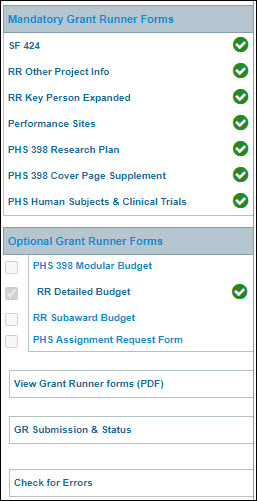
The order of the mandatory forms may vary depending on the opportunity. The preparer generally enters data once, either through the wizard or on one form, and the system then propagates the values to corresponding fields on other forms.
To use the optional forms, the preparer selects the corresponding checkbox, which activates the link to the form.
In SPAERC, you can only edit the Application Details (Full Application Title, Start and End Dates, and the Application Type) and the Organization Code.
Viewing the PDF Version of a Grant Runner Application
Selecting View Grant Runner forms (PDF) will create a PDF that combines all of the sponsor forms and the related attachment content. The layout of the PDF will be the same as the NIH reviewers see, and can be printed or circulated via email.
To view the PDF version of a single form, select the print preview icon that appears on the action bar for each form. Note: most attachment names will not appear on the PDF form (we will resolve this in the future).
Submitting a GR Application
Select GR Submission & Status to submit the application. Prior to submission, this page only displays in SPAERC; after submission, the PI and contacts can also view it in read-only mode to see the submission history. The page has two sections.
- Grants.gov Submission Information contains the button to submit the application to Grants.gov. You can submit an application only when the Ready to Submit value is “Yes.” Once you approve the application, the button stays active for seven calendar days, before becoming grayed out. This section also displays the Grant Tracking Number assigned by Grants.gov, and the Sponsor Assigned Number from NIH, post-submission.
- Grants.gov Tracking History displays information about the submission from the Grants.gov and NIH sites.
If the application has been changed for any reason after the initial submission, choose Changed/Corrected on the SF424 form for the subsequent submission. The initial GRANT tracker number will display automatically, so that the two submissions are linked. Then use the Submission & Status page to re-submit the application.
Check for Errors
Selecting Check for Errors runs a validation on the entire application and displays a list of any errors found, including Grants.gov and NIH errors. All of the forms must pass validation before the preparer can complete the eGC1 for routing.
Grant Runner Icon on the Tasklist
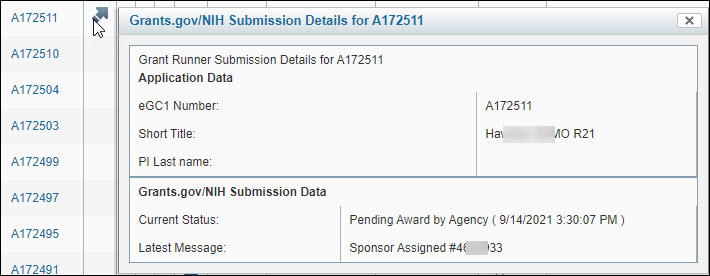
On the Application tasklist there is a column named “Has S2S Package” which displays the GR arrow icon. (S2S stands for system-to-system; the submission is sent from our system to Grants.gov’s system.) If you place your mouse over this arrow, a modal window displays that contains the status information. This information also appears on the GR Submission & Status page. It’s a quick way of checking the status without having to open the eGC1. You can use the “x” in the upper right-hand corner to close the window, or just move your mouse off the arrow.
Grant Runner Submission Decoder
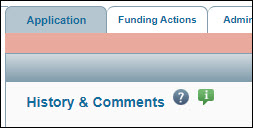
There is an additional “help” link on the eGC1’s History & Comments page. It’s a small green rectangle with a white letter “i”. Selecting it opens a PDF file which provides information on how to proceed when submission errors occur.