My eGC1s Page
The My eGC1s page displays those eGC1s to which you have direct access either as an owner or through read-only or read-write permissions. The eGC1s are listed in order by Date Created with the newest one first. The following image shows the header for this page.
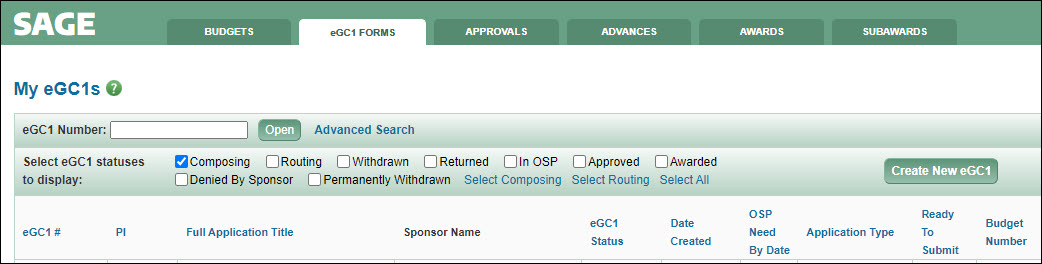
The fields displayed in the list, reading left to right, are:
- eGC1 # – system assigned unique number – click this to open the eGC1
- PI – Principal Investigator’s Name
- Full Application Title
- Sponsor Name
- eGC1 Status – this field is linked, but the links are not currently active
- Date Created
- OSP Need By Date
- Application Type
- Ready To Submit
- Budget Number – number of the connected SAGE Budget, if there is one; selecting this number will open the budget in a new browser tab or window.
From the My eGC1s page, you can find and open an eGC1 by its number, filter the list by status, link to an Advanced Search and create new eGC1s.
Find and Open an eGC1 by Number

To use this feature, enter the number of the specific eGC1 (with or without the “A”) in the text box and click Open. The page will refresh and display the eGC1.
Filter the eGC1 List by Status
You can use the status checkboxes to select which items appear on your list. Your list will update each time you check or uncheck one of the status boxes. For status definitions, see eGC1 Statuses.
The Select Composing, Select Routing, and Select All links will reset the status checkboxes to show only those items that match your choice.
The following image shows this section of the page.

When you first display the My eGC1s page, only items in Composing status are displayed. If you don’t currently have any eGC1s in Composing status, you’ll see this version of the page as show in the following image.
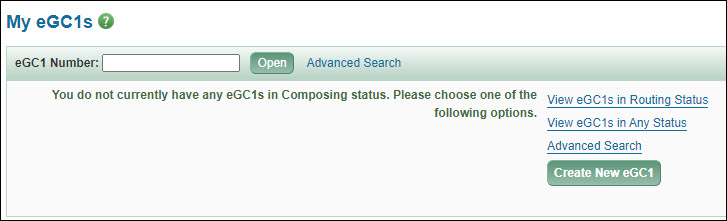
You can use the quick find-and-open feature, choose to view Routing items or all items, go to the Advanced Search page or create a new eGC1.
Link to an Advanced Search
Click the Advanced Search link to display a search page you can use to find eGC1s by various criteria.
Create a New eGC1
Click the Create New eGC1 button to open the wizard for creating a new eGC1 application.