Animal Use
Use this section to provide information about the use of vertebrate animals in the project to allow reviewers to determine compliance with UW and sponsor requirements. If you have questions regarding the use of Vertebrate Animals, please contact the Office of Animal Welfare.
Note: Hoverboard data will be refreshed each time you view this page.
As with other eGC1 pages, you can partially complete your entries and save the eGC1. You must complete the required fields before you route your eGC1 for approval.
Select Start Section to open the section initially, and then Edit Section to add or update existing data.
Animal Use Question
AU-1:
Will the project involve the use of vertebrate animals?
Answer: Yes or No
A table for Animal Use Protocols and an Add Protocol button display if AU-1 = Yes
Note: If AU-1 = Yes, then you must include at least one protocol.
Add Protocol
You can add a protocol in three ways. Start by selecting Add Protocol. By default, the UW Protocol choice displays. Select the appropriate protocol type link from there.
Each type is explained below.
- UW Protocol (from Hoverboard)
- External Protocol
- New Protocol
UW Protocol
Use this to search Hoverboard and import your data. Start by entering at least 3 digits of your protocol number. The search will return any items that contain the digits you enter. Click in the results list to select the appropriate item. The following image shows a results list after searching for “123”.
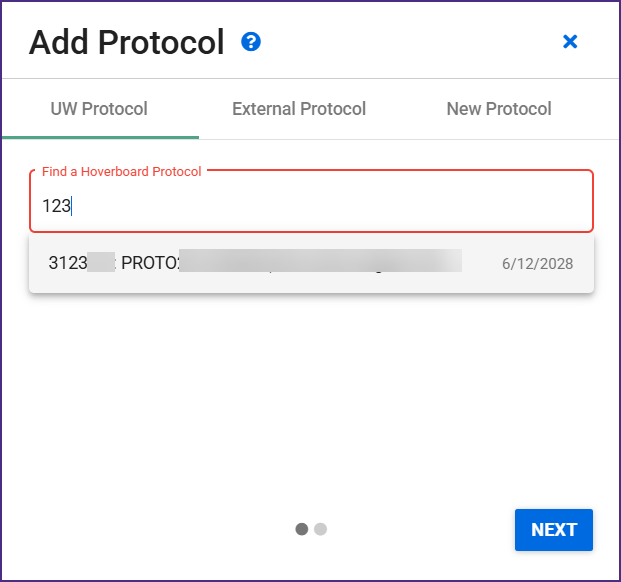
When you select a protocol from the results list, the following data displays in the dialog window:
- Protocol Number
- Protocol Title
- Protocol PI
- Primate Center Involved – Yes or No
- Expiration Date
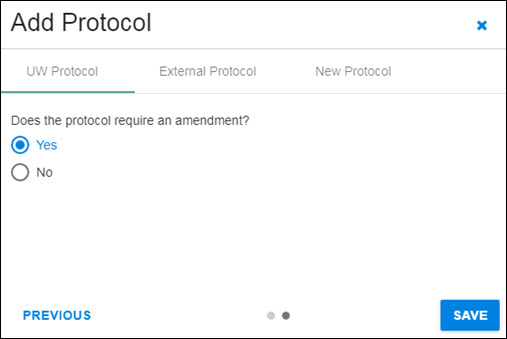
Select Next to continue the process. The dialog will display the question “Does the protocol require an amendment?” Answer Yes or No.
Select Save to return to the Animal Use section.
Note: If the value for Primate Center Involved is Yes, the Primate Center will be added to the approval flow as an Approver.
The following image show the amendment question in the dialog window, with Yes selected.
External Protocol
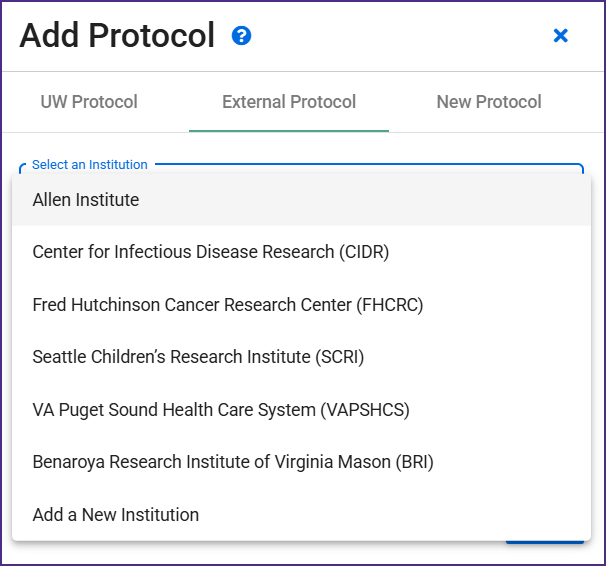
Select this choice in the Add Protocol dialog to enter an External Protocol. Select the appropriate institution from the drop-down menu.
The choices are:
- Allen Institute
- Center for Infectious Disease Research (CIDR)
- Fred Hutchinson Cancer Research Center (FHCRC)
- Seattle Children’s Research Institute (SCRI)
- VA Puget Sound Health Care System (VAPSHCS)
- Benaroya Research Institute of Virginia Mason (BRI)
- Add a New Institute
The following image shows the initial screen with the drop-down menu expanded.
When you select one of the existing institutions from the menu, its details will display. These fields are
- Assurance Number
- Institution Country
- Institution City
You can find more information about assurance numbers on these NIH web pages:
- Domestic Assurances: https://grants.nih.gov/grants/olaw/assurance/300index.htm
- Foreign Assurances: https://grants.nih.gov/grants/olaw/assurance/500index.htm
The following image shows the details for Fred Hutchinson Cancer Center (FHCC).
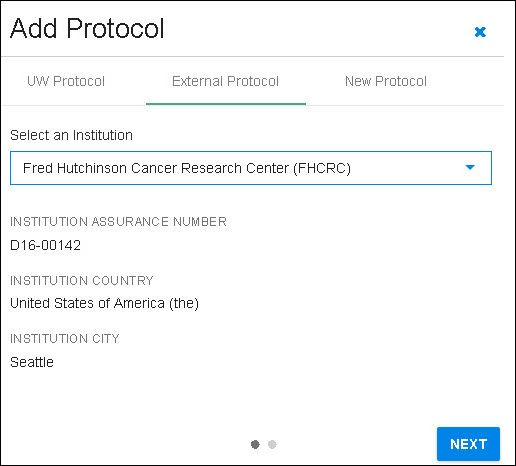
Select Next to enter your Protocol Number and the Expiration Date.
The following image shows this step, with some example data entered.
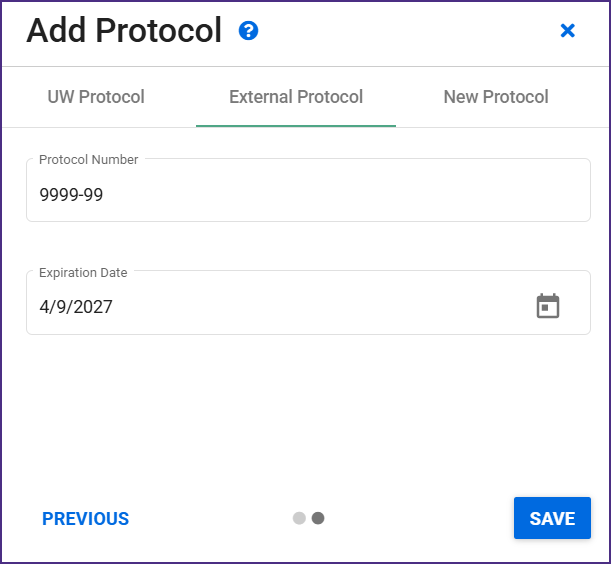
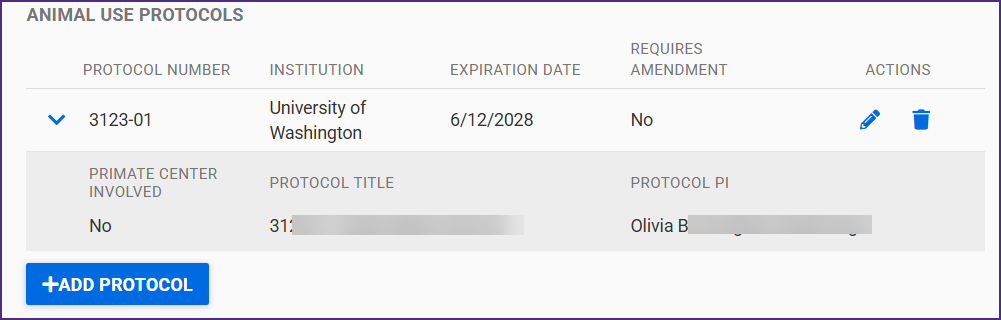
Select Save to complete your entry. You can save a partial entry. It must be complete prior to routing your application.
The following image shows the expanded table row from this entry on the compliance summary page.
Add a New Institution
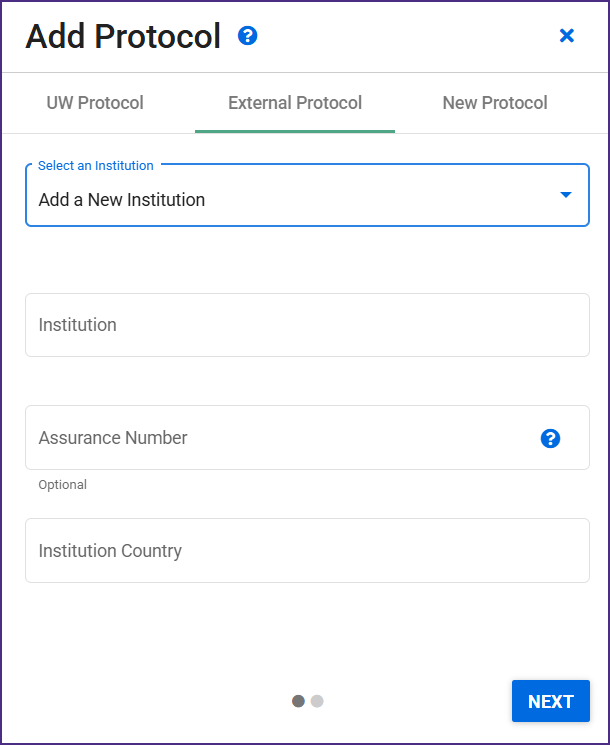
If you select “Add a New Institution” from the External Protocol list, the dialog will display the following fields:
- Institution
- Assurance Number (optional)
- Institution Country
Add the appropriate information for these fields. Note that if you select any country other than the United States of America, you must also enter an Institution City.
The following image shows the first page of the dialog.
Select Next to display the section page of the dialog. Enter the Protocol Number and its Expiration Date.
Select Save to complete your entry. You can save a partial entry. It must be complete prior to routing your application. The added information will display similarly to the existing external institution entries.
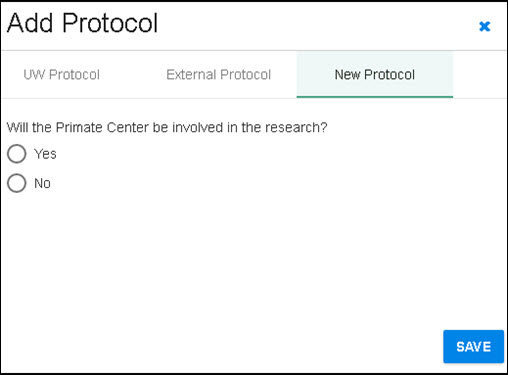
New Protocol
If you will be establishing a new protocol, select that option from the initial Add Protocol dialog box. You just need to answer yes or no to the question “Will the Primate Center be involved in the research?”
If you select Yes, the Primate Center will be added to the approval flow as an Approver.
The following image shows the New Protocol dialog with the Primate Center question.