Modification Request Header and Navigation
- Modification Request Header Elements
- “More Actions” Menu
- Modification Request Form Sections
- Previous and Next Section Buttons for Navigation
Modification Request Header Elements
The header contains the following information, reading from left to right:
- “Back to list” blue arrow icon
- New Modification Request default title
- Short Title: From the Award (below New Modification Request)
- Modification Type: OSP & GCA or GCA
- Request ID: Prefix “MOD” with unique 5-digit number
- Help Link icon
- Award Application (eGC1) with link to open
- Award Activity: Associated award number from Workday Finance
- Request Status (OSP Setup, OSP Assigned, Processed, etc.)
- A list of all award statuses can be found in this user guide article
- “More actions” menu with drop-down list showing “Add comment” and ”Delete request” (options vary)
The following image shows an example Modification Request header:

“More Actions” Menu
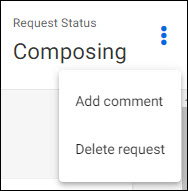
The menu choices vary depending on the status of the Modification Request.
| Status | Menu Choices |
| Composing |
|
| Withdrawn |
|
| Returned |
|
The following image shows the possible menu choices:
Add Comment
The option to add a comment always displays, as shown in the following image:
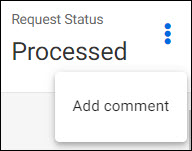
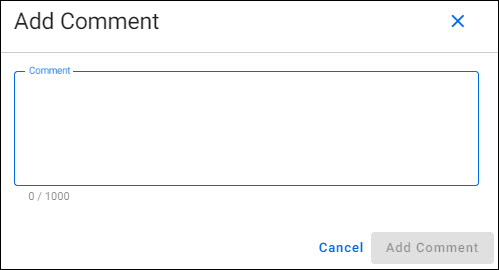
Select “Add comment” to include a comment in the Comments & History section.
The following image shows the Add Comment window. Enter your comment, then select Add Comment.
Additional Guidance on Award Modification Comments:
Modification Request Form Sections
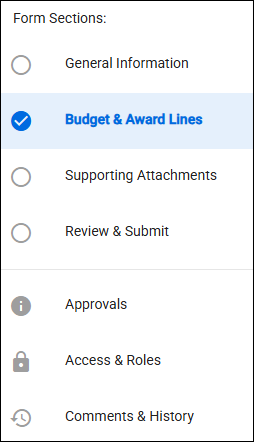
On the left side of the page is the Navigation Menu, divided into two parts.
From the top part, you can access the Form Sections. The section being displayed will be highlighted. Select any section name to navigate to that section.
Select each of the following for more information:
Below the Form Sections are links to Approvals, Access & Roles, and Comments & History.
The following image shows the Navigation Menu, with the General Information section highlighted. A section with a checkmark indicates it is complete.
Previous and Next Section Buttons for Navigation
At the bottom of each section, a button for the Previous Section and the Next Section will appear, as appropriate.