Manage Subrecipients
Note: you must have the OSP Subcontracts ASTRA role to use this tool. The tool still refers to subcontracts, so that term will be used in this article.
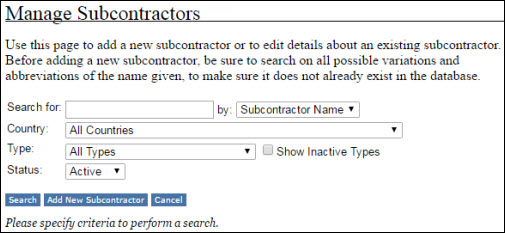
Searching
You can search for subcontractor by Name, Country, Type, Status, or any combination of values.
When you search by Name, the system will return any subcontractor whose name contains the characters you enter. For example, searching for “seatt” or “ttl” or “seattle” will find subcontractors with Seattle in their name.
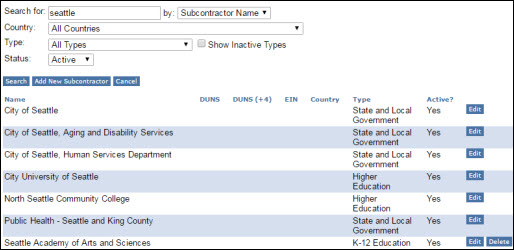
Country is the standard SAGE list, with the United States at the top for convenience.
Types are:
- All Types
- City of Seattle
- King County
- Local Government Other
- State of Washington
- State Government Other
- U.S. Federal Government
- Foreign Government Other
- Tribal Entity
- School District Other (K-12)
- Foundation
- Non-Profit
Status is Active or Inactive.
Editing a Subcontractor
When you select Edit next to a subcontractor’s name in the search results, the Edit Subcontractor page displays. You can update any of the displayed fields except Active.
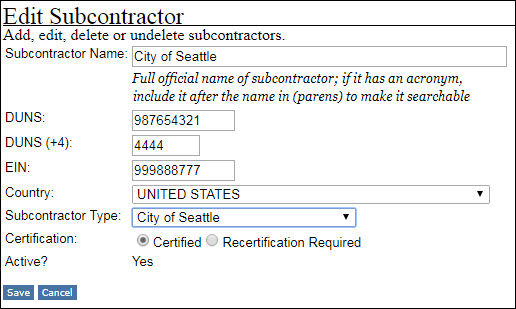
Those fields include
- Name
- DUNS
- DUNS (+4)
- EIN
- Country
- Subcontractor Type
- Certification
Enter your changes and click the Save button to complete the process. The Manage Subcontractors main page will display.
Adding a New Subcontractor
When you select Add New Subcontractor from the main page, the Edit Subcontractor page displays.
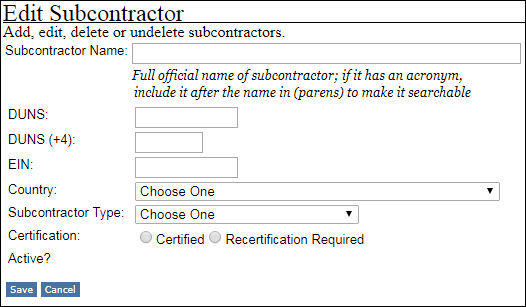
For the Subcontractor Name, enter the full official one; if there is an acronym add it after the name in parentheses.
Fill in the DUNS, DUNS +4 and EIN values, and select the appropriate Country, Subcontractor Type and Certification status. These are all required fields.
By default, the Status will be Active.
Click Save to complete the process. Click Cancel to return to the Manage Subcontractors page without saving.
Deleting a Subcontractor
The Delete button only appears to the right of the subcontractor’s name on the search results list if it is not associated with any subawards in SPAERC. Selecting it will inactivate the subcontractor and refresh the results list.