Cycle Item Views
This article describes how to:
- Show Items
- Customize your view of Cycle items
- Customize the Hierarchically View
- Show Columns
- Customize the By Item Type View
- Select Individual Columns to display
- Sort Items by Column
- Customize the In Progress View
- Customize the Related Attachments View
- View a Cycle Item’s Related Attachment
The Hierarchy View section of the Cycle Details page defines how items display, and enables you to customize which items to view, which data associated with the items displays and how to order the items or attachments listed.
Show Items
The “Show Items” radio buttons control which view to display. Each of the four views has its own set of customizations.
- Hierarchically is the default view, and displays all items in the Cycle in a single table. It displays the items according to their parent-child relationships, indented according to their place in the hierarchy. The order of items is from newest to oldest for direct children of the Cycle. For a given child, its related items generally display in order from oldest to newest.
- By Item Type displays Cycle items in a separate table for each Item Type; the user can select which Item Types to display
- In Progress displays just those items still being worked on: Applications not yet Awarded, Funding Actions and Admin Actions which are not yet Processed, and Subcontracts which are Active
- Related Attachments displays just those items which include Related Attachments, with links to view those attachments
You also have the option to include any Subcontracts and/or PANs in the item list by selecting the appropriate checkbox. If you don’t need to work with these item types, you could choose not to display them to shorten the overall list.
Each view allows a common set of actions to work with the Cycle Items:
- Open the Item
- Reassign the Item
- Add a child item (see Items & Relationships for a better understanding of this)
- Change the Parent Item
See the Open and Modify Items section for more details.
Customize your view of Cycle items
- Select the radio button corresponding to the view you want to see.
- Select the options for the items you want to view:
- Subcontracts and PANs when displaying the Hierarchically, In Progress, or Related Attachments views
- Specific Item Types when displaying the By Item Type view
- Select the options for the columns you want to view (as a whole, or per Item type). Wait for the page to refresh after each option change.
Customize the Hierarchically View
The Hierarchically view displays all items in a cycle, organizing them by their Parent-Child relationships. The following image shows an example of this view.
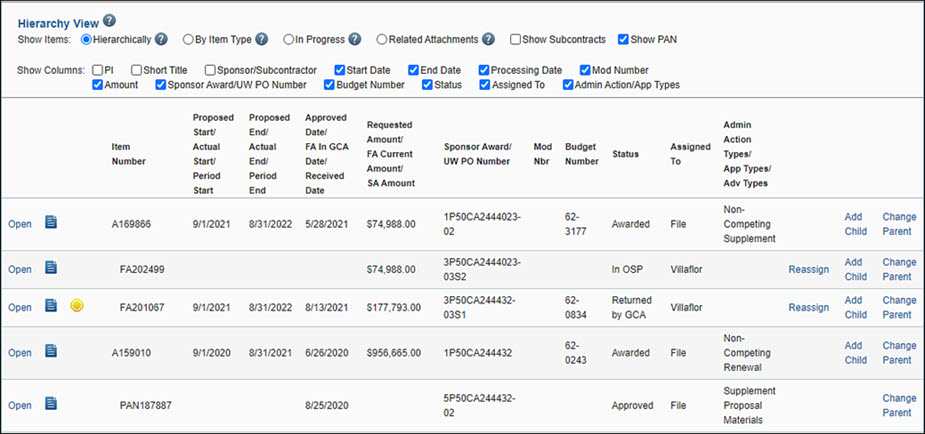
Show Columns
The Show Columns set of check boxes enables you to determine which data to display about each item in the list of items. The following image displays the check boxes, which occur just below the view choices.

In the Hierarchically view, a display column may represent something different based on the Item type. For example, the “Admin Action Types/App Types” column will display the Requested Change type(s) for a PAC, but will display the Application type for Application items.
The following table summarizes the information that displays for each Column where it varies based on the type of item.
| View Column | Applications | Funding Actions | Subcontracts | Admin Actions | Advance Budgets |
| Sponsor / Subcontractor | Sponsor | Sponsor | Subcontractor | Sponsor | Sponsor |
| Start Date | Proposed Dates | Actual Dates | Period Dates | PAC only: Revised Start Date, if available | Actual Dates |
| End Date | Proposed Dates | Actual Dates | Period Dates | PAC only: Revised End Date or Temporary End Date, if available | Actual Dates |
| Processing Date | Approved Date | FA in GCA Date | Received Date | (not applicable) | Request Date |
| Amount | Requested Amount | FA Current Amount | SA Amount | (not applicable) | Requested Amount |
| Sponsor Award, UW PO Number | Sponsor Award Number | Sponsor Award Number | UW PO Number | (not applicable) | (not applicable) |
| Admin Action / App Types | Application Type | (not applicable) | (not applicable) | Action-specific Admin Action Type (see below) | Request Types |
Each admin action type (PAC, PAN, etc.) defines actions specific to the type. The Admin Action Types column displays this type for each Admin Action Item in the cycle. The table below describes the column meaning for each specific Admin Action type.
For all types, you can make multiple selections. When this occurs, the Hierarchically view displays the phrase “Multiple Types.”
| Admin Action Type | Admin Action Types Column Info |
| PAC | Requested Change |
| PAN | Content of Notification |
| NAA | Agreement Type |
| CO | Close Out Action |
Customize the By Item Type View
The By Item Type view displays Cycle Items in tables according to the item type, so all Applications display separately from all Funding Actions. Because of the individual tables, each column is specific to the Item Type being displayed.
The actions available on the different items are the same as in the Hierarchically view. You can, however, add some layout customizations in the By Item Type View.
Show Item Types
In the By Item Type View, you have complete control over which item types you want to display.
- Select “By Item Type” in the Show Items list
- Choose which item types you want to view
- Check the box(es) specific to the columns you want to see, or
- Click the “Show All” link to display all Item types for the Cycle
If there are no Items of a specific type, then you will see
There were no <item-types> found.
Select Individual Columns to display
Each Item type display has a separate control for specifying which columns to view.
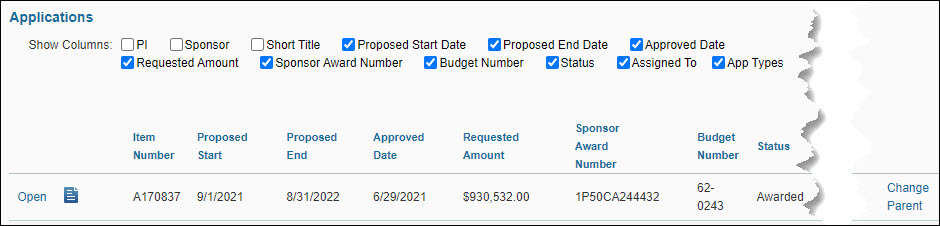
- From the Cycle Details Page, navigate to the table for the Item Type you want to customize
- Select the Columns to display for that Item Type
Sort Items by Column
In the Item Type view, you can sort each display table by column
- From the Cycle Details page, navigate to the table for the Item Type you want to sort
- Click on the Column name in the item display. This will sort the column in a descending order
- Click on the Column name again to sort in ascending order
Customize the In Progress View
The In Progress View displays
- Applications not yet Approved
- Funding Actions not yet Processed
- Admin Actions not yet Processed
- Subcontracts that are Active
This layout is nearly identical to the Hierarchically view. The difference is that the items do not display in a defined order.
This view is customized in the same manner as the hierarchy view, and the columns have the same meaning. Refer to that section for working with the In Progress view.
Customize the Related Attachments View
The Related Attachments view displays only those Cycle items which have attached documents. Each item displays a list of the attached documents for viewing.
Note: Items that do not have attached documents will not appear in this view.
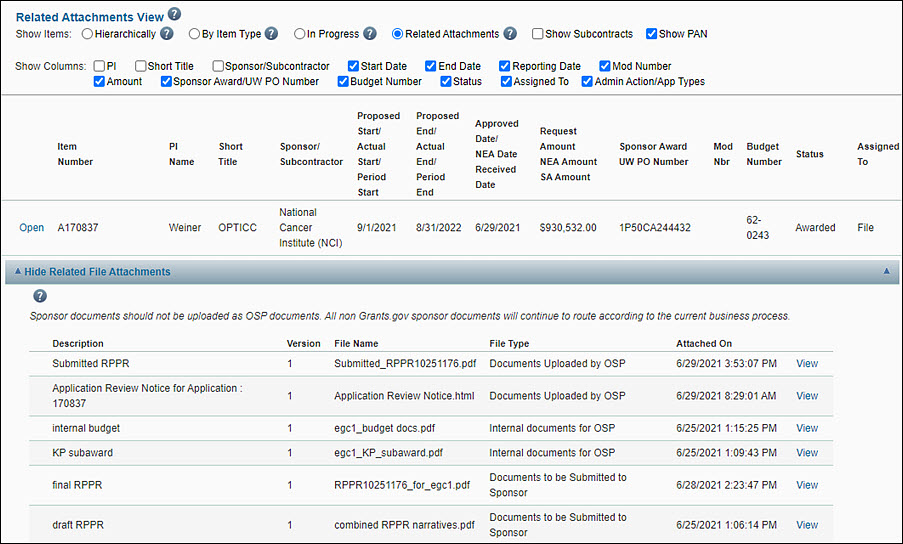
In general, this view is similar the Hierarchically and In Progress views for column descriptions and layout customizations. The one added capability on this view is to list and view Attachments for each Item.
View a Cycle Item’s Related Attachment
- In the Show Items list, select “Related Attachments”
- Locate the Item for which you would like to view the attachments
- Click the “Show Related File Attachments” link under the item. The list of attachments for the item will display
- Locate and click ‘View’ on the attachment you would like to open