Create an Advance Budget Request
Review: Who Can Create an Advance Budget Request.
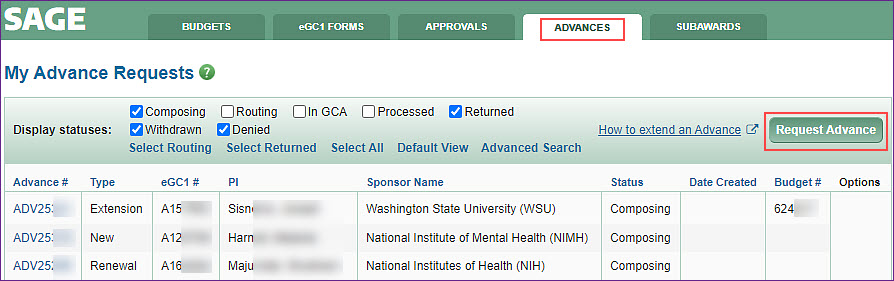
To create an Advance Budget Request, start at the My Advance Requests page.
The following image shows the Request Advance button, located at the right of the status check boxes.
Create Advance Request Page
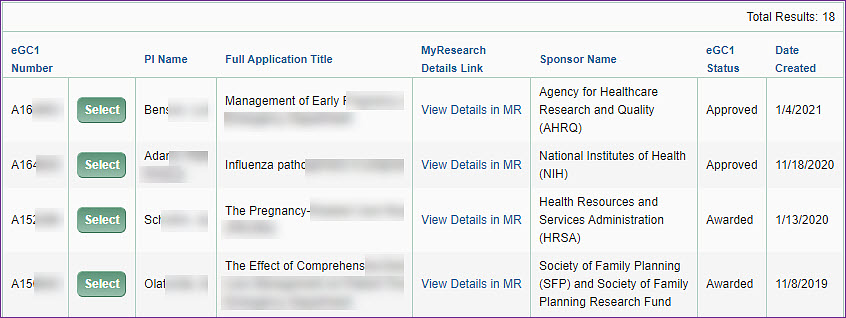
When you select Request Advance, the Create Advance Request page will display. The page has a search section, described below, followed by a list of eligible eGC1s.
An eligible eGC1 is one that:
- Is in “Approved” or “Awarded” status
- You have permission to edit
- Does not have an Application Type of Non-Award Agreement (NAA) or Pre-Application
- Does not have a child Funding Action with a status of “In GCA” or “Re-sent by OSP” in the same cycle
- Does not have an advance in a Composing, Routing or In GCA status
The eGC1 list table includes these columns:
- eGC1 Number
- Select button
- PI Name
- Full Application Title
- MyResearch Details Link
- Note: As of July 6, Funding Status and Non-Award Agreement data may be out of sync with SAGE and Workday until MyResearch is remediated. Please use SAGE to review eGC1 and award status until further notice.
- Sponsor Name
- eGC1 Status
- Date Created
If there are more than ten eGC1s, the list will include page numbers at the lower, right of the table.
The following image shows a partial example list of eligible eGC1s.
Search for an eGC1
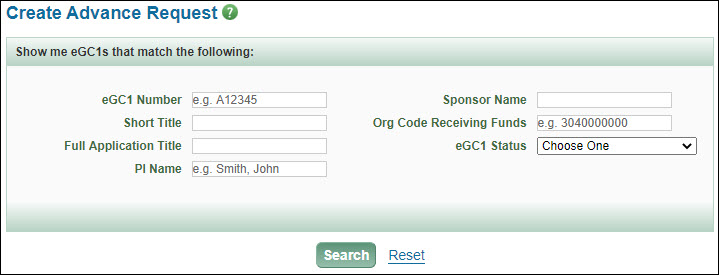
You can use the search section to limit the list of eGC1s to ones that match the criteria you entered. You can search by:
- eGC1 Number
- Short Title
- Full Application Title
- PI Name
- Sponsor Name
- Org Code Receiving Funds
- eGC1 Status, selected from the drop-down menu
Click the Search button to see the results list. The total results number displays at the far right of the list. The Reset link clears all of the criteria values.
The following image shows the eGC1 search page.
If you cannot find the eGC1 you’re looking for:
- Confirm you have the correct eGC1 number.
- Review the eGC1 to be sure you have edit access; it will not display items with read-only access.
- Review My Research to see if the Funding Action is In GCA. Contact gcahelp@uw.edu for more information.
Select the eGC1
To create the advance click on the Select button for the desired eGC1. The advance form will display and will include information copied from the selected eGC1. Each section of the advance has its own user guide help article.
The system will determine if the advance type will be New or Renewal based on the status of any Funding Actions in the selected eGC1’s cycle:
- New Advance: Selected eGC1’s cycle has no processed Funding Actions (authorized action of New or Renewal)
- Renewal Advance: Selected eGC1’s cycle has at least one processed Funding Action (authorized action of New or Renewal)
Exception: When the selected eGC1 is a Competing Renewal, the advance type will be Renewal, even if the eGC1 is in a new cycle without a processed Funding Action.
Automatic Carryover on Award
If the award has an automatic carryover, a warning message will display, as shown below.
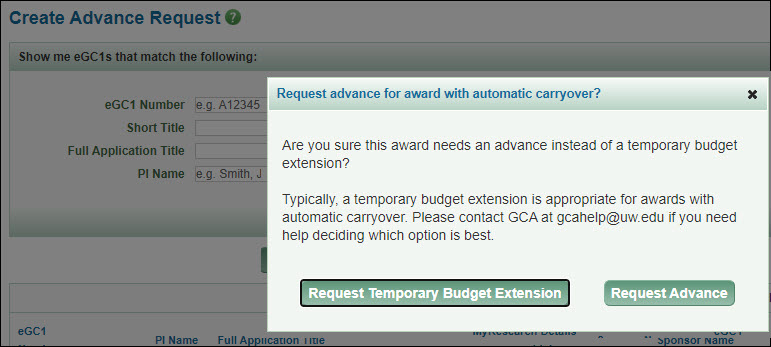
The message reads:
Are you sure this award needs an advance instead of a temporary budget extension?
Typically, a temporary budget extension is appropriate for awards with automatic carryover. Please contact GCA at gcahelp@uw.edu if you need help deciding which option is best.
Following the text are two buttons:
- Request Temporary Budget Extension
- Selecting this opens the Budget Extension Request Form web page
- Request Advance
- Selecting this opens the Advance Budget request page