List / Edit and Add Sponsors
List/Edit Sponsors
Use this tool to search for existing sponsors and edit their related information.

Start by entering the string of characters you want to search for, and then select what you what to search by. The choices are:
- All
- Sponsor Name
- Sponsor Parent
- Notes
You can further limit your search by using the Type drop-down menu to select the Sponsor Type, such as Federal Government or Association & Non-Profits.
Finally, you can limit your search by selecting a Status value of Active, or Inactive.
Click the Search button to run the search. The results list will display and include the following columns:
- Name
- Type
- Allows Escalation (True/False)
- URL
- Notes
- Active? (True/False)
- PHS? (True/False)
- Parent Sponsor
To the right of each sponsor listed, Edit and Delete buttons display.
- The Edit button opens a data entry form populated with the current data values. You can change any of the values displayed. Note: You cannot inactivate a sponsor that has active children.
- The Delete button refreshes the page and changes to an Undelete button.
In addition to the Search button, there are 3 other buttons:
- Add New Sponsor: click this to access the Add Sponsors tool described below
- Cancel: [generates a page error]
- Reset: click this to clear the search string and reset each of the drop-downs to the “all” choice.
Add Sponsors
Use this tool to add a new sponsor to the database. Please read through the displayed instructions for adding a sponsor.
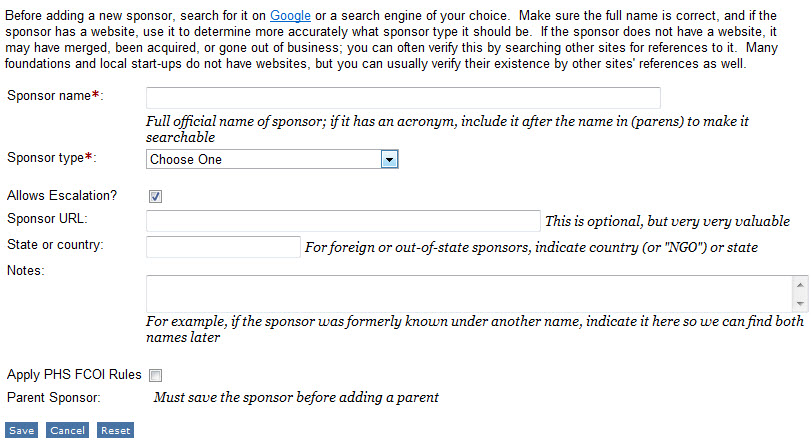
The Allows Escalation? checkbox defaults to checked, which indicates this sponsor allows another approver, typically the department chair, to approver for the PI.
Check the Apply PHS FCOI Rules field if the new sponsor is a Public Health Service sponsor.
The three buttons are
- Save: refreshes the page and adds a light green banner with the text “Save was Successful”
- Cancel: returns you to the List Sponsors tool
- Reset: clears any data entered in the form