Grant Runner Form Validations
There are several ways to verify that you have entered all of the required data, and included any required attachments, on your Grant Runner application forms:
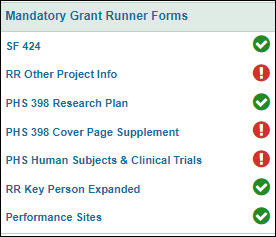
- On the left navigation menu, you can look for any red exclamation mark “validation icons” to the right of the form name. This indicates missing data. When the form is complete, you will see a green check mark icon.
- For a single form, you can use Field Pop-Overs and the Show Form Errors link, described below.
- For an overall check, select Check for Errors from either the left navigation menu or the Certify & Route page to see the Errors and Warnings Summary, described in its own article.
If you select Ready to Submit = No on the Certify & Route page, you can route your Grant Runner application for review even if it still has outstanding Grants.gov or NIH errors.
You must fix all errors for your application to be eligible for submission via Grants.gov.
Validation Icons
The following image shows the left navigation menu with the validation icons.
Field Pop-Overs
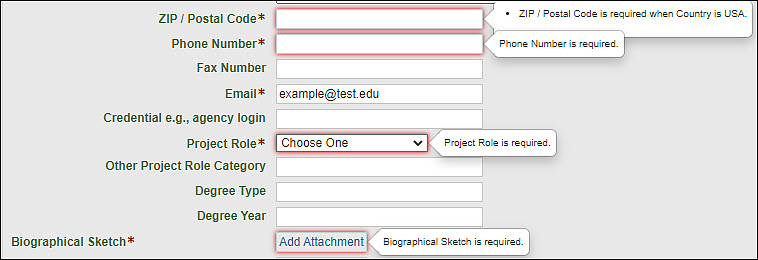
As you work on a form, you will notice some fields outlined in red. Generally, this indicates a required field, as does the red asterisk (*) following the field’s label. If you click on that field, a “pop-over” explanation will display.

Note: Some fields may not be marked with the asterisk (*) but may still be required based on other data entered.
Show Form Errors
Another way to look for errors on a form is to use the Show Form Errors link on the “icon bar” at the upper right of the form.

Clicking the Show Form Errors link displays a list of errors at the top of the page. Once you click the link, it changes to Hide Form Errors so that you can turn this feature off.

In addition to the list, all of the corresponding pop-overs display to help you spot the errors on the form.