Tasklist Elements and Icons
When you access SPAERC for the very first time, you will see the Applications Tasklist by default. You can view the tasklists for other item types by clicking on the appropriate tab near the top of the page.
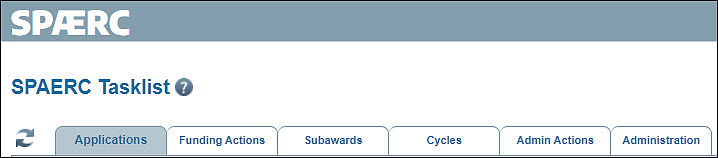
The item type tabs, in order from left to right, are Application, Funding Actions, Subawards, Cycles, and Admin Actions.
Use the Administration tab, at the far right, for creating new Actions (admin or funding) and for accessing some administrative tools. When you hover your mouse over the Administration tab, it displays a drop-down menu. The choices will depend on your ASTRA role(s).
The following image shows the tabs.
Common Tasklist Elements
The following image shows five main features that appear on all tasklists. They are described below.
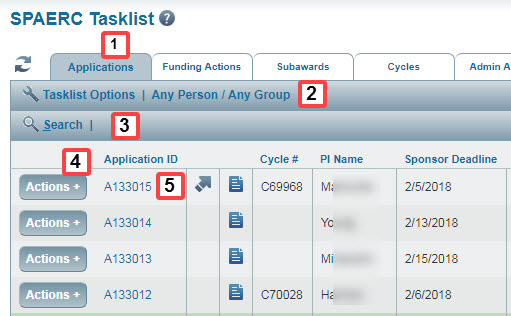
- Select a tab to display the tasklist for that item type.
- Select the Tasklist Options bar just below the tabs to customize the tasklist you are currently viewing.
- Select the Search bar just below the Tasklist Options bar to locate specific items on the current tasklist.
Note: For more information, see Search for Items. - Select the Actions + button to the left of the item’s ID column to see options for processing that item.
- All items on a tasklist have a unique ID number, which is just to the right of the Actions button. Selecting the item’s ID opens it. By default, all items in a tasklist are in order by ID number, with the newest item at the top.
Common Tasklist Icons
To provide additional information about an item, several icons display on the tasklists, each in their own column. An icon will display if the item has the characteristic.
The column names and the corresponding icons are shown and described in the following table.
| Column Name | Icon Image and Description |
| On Non-Compliance Hold? |  yellow octagon yellow octagon |
| On Compliance Hold? |  yellow octagon with a red letter C yellow octagon with a red letter C |
| Has Attachments |  blue page with folded corner blue page with folded corner |
| Has S2S Package (for Grant Runner applications only) |  blue arrow pointing to the upper left blue arrow pointing to the upper left |
| Has Adobe submission (for applications only) |  arrow pointing to the upper left with red stylized letter A on top arrow pointing to the upper left with red stylized letter A on top |
For both the Grant Runner and Adobe Submission applications, if you place your mouse pointer over the icon, a flyout window will appear that gives information about the submission status of the application. Click the “x” to close the window.