Human Subjects Division
Reviewing Initial Applications

Table of Contents
- Tips
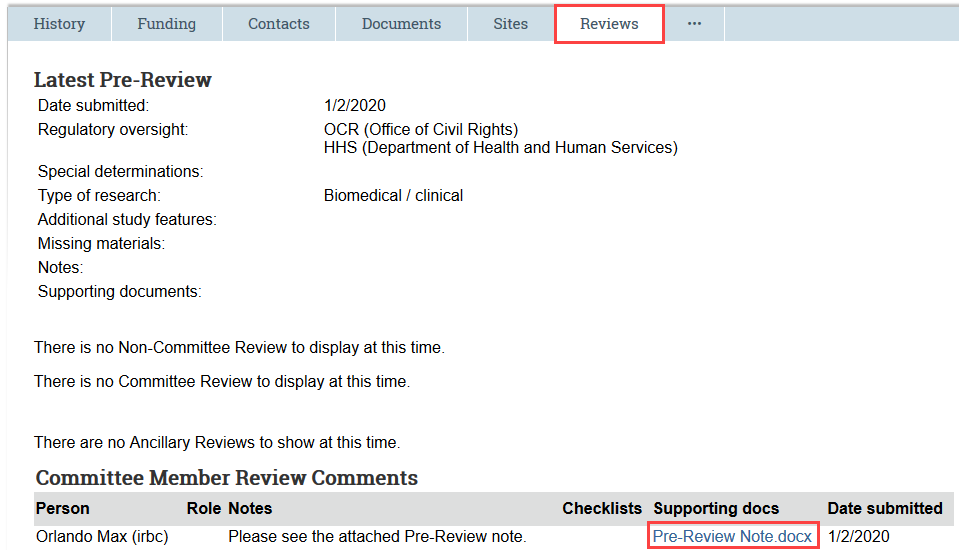
- Check Reviews Tab
- View Study Information
- View Previous Correspondence
- Request Additional Information (Optional)
- Add Review Comments
Tips
- We recommend starting your review with the Pre-Review note provided by HSD staff. HSD staff provide a succinct summary of the study and describe any regulatory issues that were identified during screening.
- You can download a copy of a document such as the IRB protocol, consent form, or pre-review note, and make your review notes directly on the downloaded copy. You can then upload the copy with your notes in a Review Comment for HSD staff and other IRB members to view.
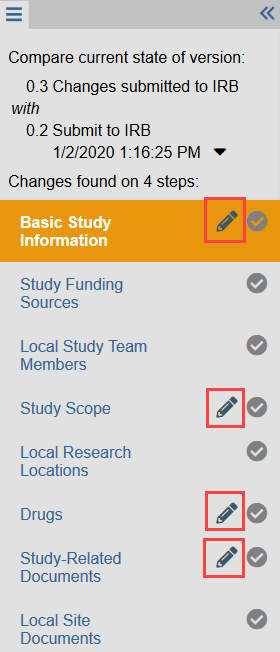
- The Compare feature allows you to easily compare different versions of the study documents. After running Compare, we recommend using the Reviewing Pane to quickly find where the document has changed between versions.
- Contact the team lead or the reviewing administrator for the application with any questions or concerns as you complete the review.
Check Reviews Tab
The Reviews tab contains the most recent review information submitted by HSD staff, the Pre-Review note and any relevant checklists or worksheets uploaded by HSD staff, and any review comments uploaded by IRB members.
View Study Information
1. Click Review Study in Next Steps
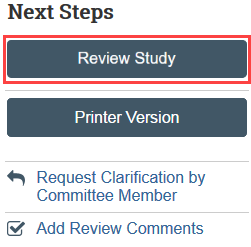
- NOTE: Reviewer mode automatically compares the current version of the study to the previous version submitted by the study team. Pencil icons indicate where a change has been made, for example with a screening or deferral response.
2. Scroll through the SmartForm to review each section
- NOTE: If desired, you can use the “Above Section Has Been Reviewed” checkboxes to track your progress. No one else can see what you check, and it will persist over multiple sessions viewing the application.

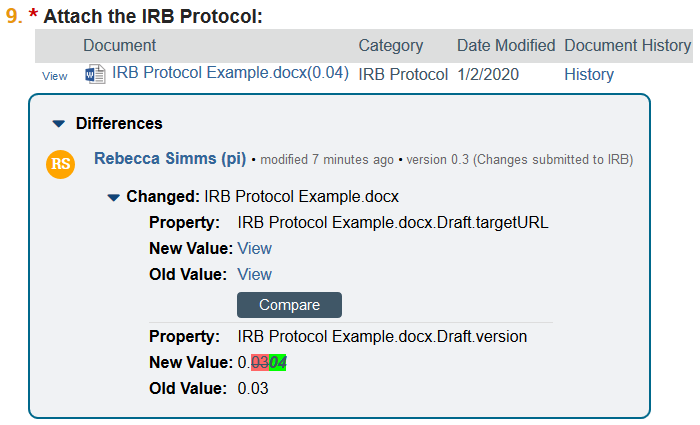
3. View any embedded documents by clicking the link
- NOTE: Click the arrow to see more information about changes to the document. Compare mode will indicate if a document has been updated and allows you to run a quick comparison between the new version of the document and the previous version of the document, if applicable. You can also compare any 2 versions of a document in the document history.
4. Click Exit when you have finished reviewing the SmartForm

View Previous Correspondence
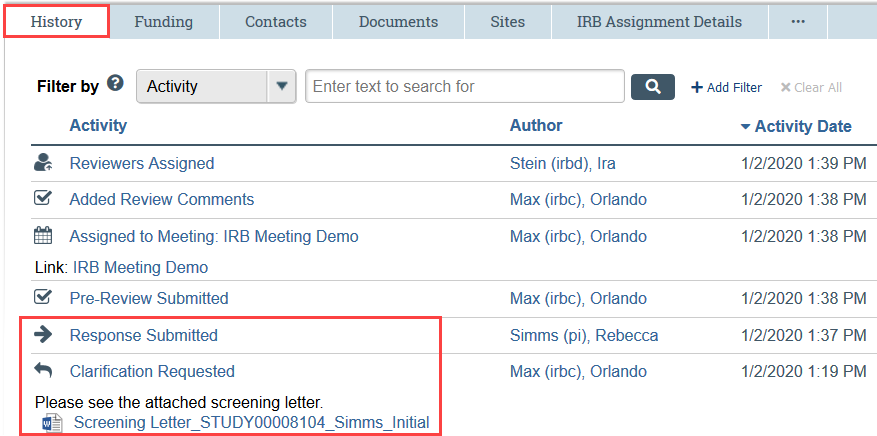
Any previous correspondence is available in the History tab, including any screening done by HSD staff and any determination letters previously sent by the IRB.
Look for the following activities:
Clarification Requested: HSD staff have sent screening questions, or an IRB member has requested additional information.
Letter Sent: The IRB sent a determination letter, such as modifications required to secure approval or deferred.
Response Submitted: The study team has responded to a clarification request or determination letter.
Request Additional Information (Optional)
Before the IRB meeting, Zipline allows IRB members to request additional information from the study team directly. However, requesting additional information from the study team in Zipline is NOT anonymous- the study team will see your name.
To request additional information anonymously, you must go through the team lead or the reviewing HSD administrator for the application. HSD staff are happy to send requests on your behalf.
To request additional information directly, not anonymously:
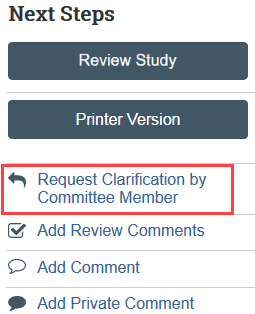
1. Click Request Clarification by Committee Member in Next Steps
2. Enter your request in the text box or as an uploaded supporting document
3. Click OK
Add Review Comments
While reviewing a study, you can record your review comments within Zipline. This lets other committee members view your comments before and during the meeting. Reviewer comments are intended to be an informal tool used to aid the IRB’s discussion and review. All of your comments and the files you attach will be purged from the system when the approval letter is sent; they are not retained as part of the study record. Your review comments are never visible to the study team members.
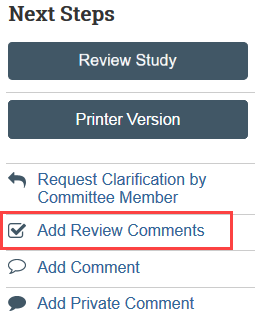
1. Click Add Review Comments in Next Steps
2. Add your notes in the text box or as an attached document- we recommend keeping text box notes short and putting any longer notes in a document attachment
- NOTE: You cannot add more than one review comment, but you can revise your review comment as much as needed.
3. Click OK
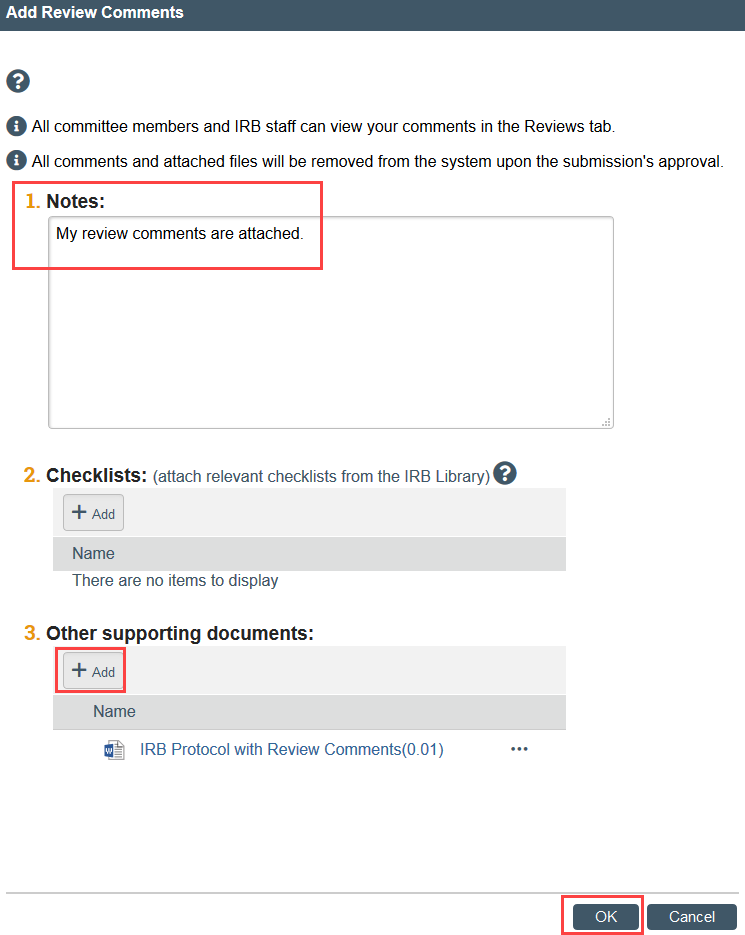
Your notes are now visible to HSD staff and other IRB members on the Reviews tab.
