MOD Review & Submit
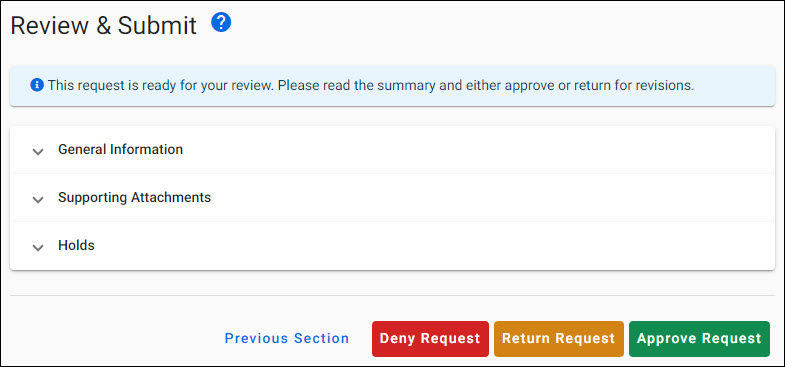
The Review & Submit page displays a read-only summary of the information entered for each section. Use the blue carets (>) to expand each section and view the data.
By default, the General Information section will be expanded when you open this page. Only one section can be expanded at a time. When you expand a different section, the current one will automatically collapse.
Below the sections are one or more buttons. The actions you can take will vary depending on the type of Modification Request and its current status.
The following image shows the page with all of the sections collapsed, for an OSP/GCA type modification request with a status of OSP Assigned:
For OSP Staff
Modification Request (OSP/GCA)
- For OSP Setup status, you can:
- Send to Campus
- For OSP Assigned status, you can:
No actions can be taken when the Modification Request is in a status of:
- Composing
- Routing
- Returned
- Withdrawn
- GCA Assigned
- Denied
- Processed
For GCA Staff
Modification Request (OSP/GCA)
- For GCA Assigned status, you can:
No actions can be taken when the Modification Request is in a status of:
- Composing
- Routing
- Returned
- Withdrawn
- OSP Setup
- OSP Assigned
- Denied
- Processed
Modification Request (GCA Only)
- For GCA Assigned status, you can:
No actions can be taken when the Modification Request is in a status of:
- Composing
- Routing
- Returned
- Withdrawn
- Denied
- Processed
Deny Request
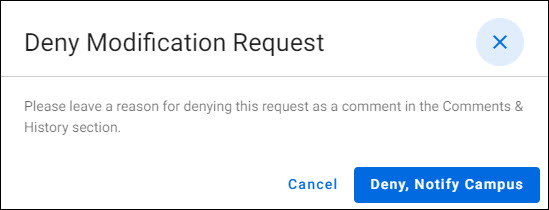
To deny a Request, select Deny Request.
- In the Deny Award Setup Request modal, select the Deny, Notify Campus button
- Enter the reason for denying the request as a comment in the Comments & History section
To cancel the process, select the blue X in the upper right, the Cancel button, or click outside of the dialog window.
The following image shows this dialog window:
Return Request
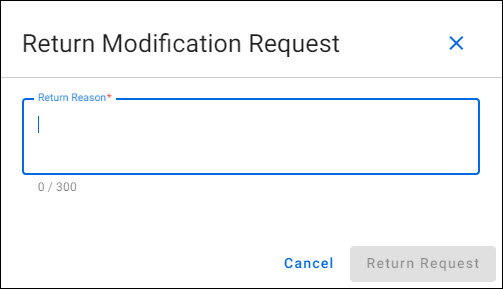
To return a Request, select Return Request.
- In the Return Award Setup Request modal, enter the reason for the return in the text box
- Once a reason has been entered, you can select the Return Request button
- An entry will be added to the Comments & History section
To cancel the process, select the blue X in the upper right, the Cancel button, or click outside of the dialog window.
The following image shows this dialog window:
Approve Request
To approve a Request, select Approve Request. The status will update to GCA Assigned.
The OSP Reviewer node on the approval flow will display the date approved.