MOD Budget & Award Lines
- Budget Connection Guidance
The SAGE Budget & Award Lines section displays in the left navigation menu for all Modification Requests (MODs); however, a connected budget is only required for certain MOD subcategories.

Budget Connection Guidance
A SAGE budget is typically required if funding is increased, decreased, carried over, or moved. Subcategories that require a budget will receive an error if the budget is not attached.
Review more information on which OSP/GCA Modifications and GCA Only Modifications require a SAGE budget. Subcategories below are linked to specific award changes guidance.
Need instruction for selecting subcategories? Review MOD General Information.
OSP/GCA MOD Budget Requirements
Funding Changes Subcategories
| Subcategory | Is a budget required? | Period Selection & Other Guidance |
|---|---|---|
| Carryover | Yes | Select the period(s) with unused funds along with the intended recipient period(s) |
| Cost Share Change | Yes | Select the period(s) in which cost share is being changed. |
| Deobligation | Yes | Select the period(s) in which the award amount has been reduced and ensure you have entered the updated cost totals for each category in SAGE Budget. |
| Equipment Addition | Depends on whether you need to rebudget for equipment purchase. | The purchase of equipment typically results in rebudgeting and may also result in a change of scope for the project. |
| Rebudgeting | Yes | Select the period(s) which have changes to the budgeted funding. |
| Relinquishment | No | |
| Subaward: Request Prior Approval | Depends on award/sponsor requirements. | Select the period(s) in which the subaward will be active.
Include a budget if you are adding a new subaward. |
| Supplement | Yes | Select the period(s) where funds are being added. |
Schedule Changes Subcategories
| Subcategory | Is a budget required? | Period Selection & Other Guidance |
|---|---|---|
| Early Termination | No | |
| Extension | No | |
| Extension: Temporary Internal | No | |
| Payment Schedule Change | No | |
| Pre-Award Spending Period Change | No | |
| Start Date Change | No |
Other Changes Subcategories
| Subcategory | Is a budget required? | Period Selection & Other Guidance |
|---|---|---|
| Stop Work Order | No | |
| Resume Work Order | No | |
| Executive Branch Directive Change | No | |
| Clinical Trial Agreement (CTA) Change | Depends on award/sponsor requirements. | |
| Effort Change (Key Personnel) | Depends on award/sponsor requirements. | Update Awarded SAGE Budget Worksheet(s) by selecting the period(s) where budget changes will occur.
Select Rebudgeting and Effort Change subcategories if budget changes are required. |
| Federal Data Repository Access & Submission | No | |
| Key Personnel Change (Includes PI) | Depends on award/sponsor requirements. | If a change to key personnel means budgetary change or if cost share change is also applicable, a budget will be required.
Select the period(s) where the key personnel are changing. Select Rebudgeting and Key Personnel Change subcategories if budget changes are required. |
| Other Changes | Depends on award/sponsor requirements. | This subcategory is used sparingly. Depending on the details of your request, you may need an attached budget. |
| Progress Report (RPPR) | No | |
| Restriction Release | Depends on award/sponsor requirements. | If restriction release impacts budgetary considerations, a SAGE Budget must be attached.
Select the period(s) where the restriction will no longer take effect. |
| Work Scope Change | Depends on award/sponsor requirements. | Changes to the scope of work may require budgetary adjustments. Attach the Awarded SAGE Budget with any necessary adjustments.
Indicate in the MOD comments what changes were necessary due to change in scope. |
GCA Only Modifications Budget Guidance
Funding Changes Subcategories
| Subcategory | Is a budget required? | Period Selection & Other Guidance |
|---|---|---|
| Award Line Addition | Depends on award/sponsor requirements. | Select the period(s) to which the new award line will apply.
Include a budget if requesting:
|
| Cost Share Change – No sponsor approval required | Yes | Select the period(s) in which cost share is being changed. |
| Rebudgeting – No sponsor approval required | Yes | Select the period(s) which have changes to the budgeted funding. |
Schedule Changes Subcategories
For more guidance, review the GCA Only Modifications page.
| Subcategory | Is a budget required? | Period Selection & Other Guidance |
|---|---|---|
| Pre-Award Spending Period Change | No | |
| Start Date Change | No |
Other Changes Subcategories
For more guidance, review the GCA Only Modifications page.
| Subcategory | Is a budget required? | Period Selection & Other Guidance |
|---|---|---|
| Award Line Type Change | No | |
| Cost Center Change | Yes | Select the period(s) in which the cost center is changing. |
| Location Change | Depends on award/sponsor requirements. | |
| Other Changes | Depends on award/sponsor requirements. |
You can learn more about creating a budget on the SAGE Budget Resources page.
Connect a Budget Breakdown from SAGE Budget
The SAGE budget you connect to the Award Modification identifies what changes you would like to make to a previously submitted budget.
Budget Eligibility
The same budget may be connected to multiple MODs if the MODs share the same parent Award. A MOD budget does not have to be attached to an award, however.
Budgets connected to eGC1s cannot be connected to MODs.
Create or Copy a SAGE MOD Budget
Create a new MOD budget in SAGE Budget or copy and update an existing SAGE Budget. The level of detail required for the MOD budget should be tailored to the sponsor’s requirements and campus unit needs.
Connect your SAGE Budget
Once you have created or updated your SAGE MOD budget, connect your budget to the Modification Request. In the Search for a budget box you can type a budget title, budget number, or PI last name to display all eligible budgets matching your criteria.
SAGE Budget Required
If a budget is always required for your selected subcategories, you will be alerted, as shown in the following image.

Searching for a SAGE Budget
Search for your budget by budget title, number or PI last name and then select your budget from the results list:

After your budget is connected, the following information will display:
- Budget name and BudgetID.
- Open Budget button.
- This opens the connected SAGE Budget in a new browser tab.
- A list of the Period(s) connected with start date and end date.
- SAGE will automatically select Period 1.
- Select the periods the MOD request applies to.
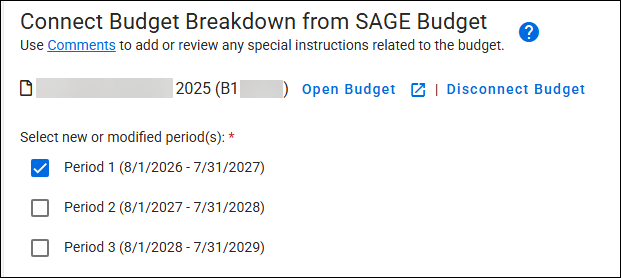
Note: Any changes made within your SAGE Budget will sync to the MOD Budget & Award Lines section, until the MOD Request is submitted. Changes can also be made to the budget when the MOD is in Returned status.
Disconnect the SAGE Budget
You can disconnect the connected SAGE Budget if the MOD’s status is:
- Composing
- Returned, but only if OSP has not approved
- Withdrawn (available only when routing to an ad hoc approver)
A Disconnect Budget link will display to the right of the Open Budget link, as shown in the following image:
Selecting this link will open the Disconnect Budget? dialog window. The following image shows the dialog window:
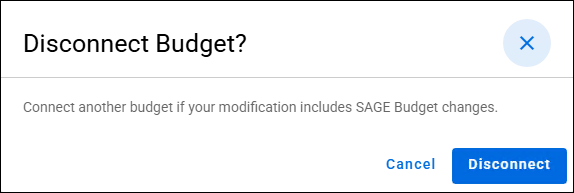
Select the Disconnect button and the page will update to reflect that no budget is connected.
View the Award Budget by Period
The Award Budget By Period portion of the Budget & Award Lines form section includes a tab for each period selected, with its description, and an “All Periods” tab on the left if more than one period was selected.

To the right of the section are three buttons:
- Expand Budget: opens the Award Line Details sections for the entire budget.
- Collapse Budget: closes the Award Line Details sections for the entire budget.
- Customize Details View: allows you to customize your view of budget data by toggling Object Class Details and Award Line Details on or off. Whichever setting is applied in the Budget and Award Lines section is also displayed in the Review & Submit section.
The following image shows these buttons with the Customize Details View expanded:

As you scroll down to view the details of your budget, the Expand Budget and Collapse Budget buttons will continue to be visible.
The following image shows the collapsed view of a budget with a single award line.

Each SAGE Budget worksheet will show as a row on the MOD Budget page. The first row is the Primary Worksheet.
The first column, Worksheet / Award Line, displays the following information:
- Worksheet Title
- F&A Rate
- Base Type
- Location
- Sponsored Program Activity Type
Selecting the blue caret (>) to the left of the worksheet title displays the Object Class with Ledger details and the Award Line Details section for that individual award line. See detail below.
The remaining columns display the costs for that category:
- Total Direct Costs
- Costs Subject to F&A
- Total F&A
- Fees
- Total Costs
For a single Period, there is a Period Total row. For the All Periods view, there are Budget Total, Sponsor Awarded Total, and Difference rows.
Object Class and Spend Category Details
This section displays when the Expand Budget button is selected. It shows a breakdown of the ASR’s linked budget amounts by the categories that will integrate to the Workday plan. The amounts are aggregated by Ledger, Object Class, and Spend Category for each award line and period.
The following image shows an example of this section:

Award Line Details
The Award Line Details section represents information that will integrate to Workday from SAGE Budget and the MOD. Some details like Terms and Conditions are entered by OSP and GCA, and will only be visible to campus once those units have taken their actions. This is a good opportunity to review the details that will comprise the award lines and grant details in Workday, prior to integration.
General Information/Terms & Conditions
- Carryover
- CFDA Number
- Cost Center
- Disposition of Balance
- Letter of Credit Document ID
- Line Type
- Grant Hierarchy
- Revenue Category
- Special Conditions
- Spend Restrictions
- Sponsored Program Activity Type
- Note: not required if the sponsor is the Royalty Research Fund (RRF)
F&A Details
- F&A Cost Rate Type
- F&A Rate Agreement
- F&A Explanation
The following image shows the Award Line Details.
