May 12, 2026 SAGE Release Notes
MOD Request Changes Demo and Q&A Session
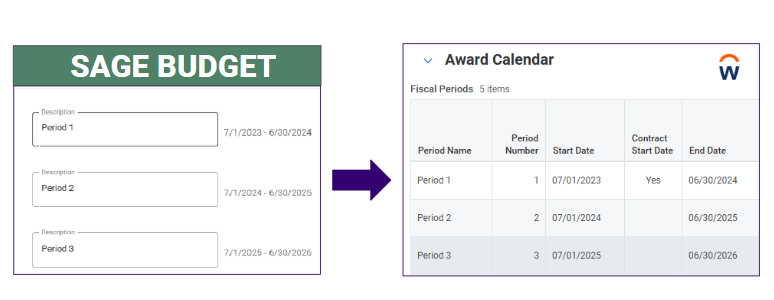
As part of the May 14 MRAM, Grant & Contract Accounting (GCA) and the Office of Research Information Services (ORIS) will demo Modification Request changes in SAGE, including how to enter an accurate carryover/offset amount, select a related grant worktag, and name SAGE Budget periods.
A subscription to the MRAM mailing list is required to join the demo.
Grant Runner eGC1
Common Forms Validation Updates
Grant Runner users will no longer see validation warnings related to the Biographical Sketch or Current and Pending (Other) Support attachments when the correct form versions are generated from SciENcv and certified. If users use an incorrect form, the warning will still be shown. Using the incorrect form will soon generate an error barring application submission.
For more details from NIH on the Common Forms requirement, see NOT-OD-26-018.
Fix: Updating Grant Runner Forms Attachments
Users can now update attachments on previously routed applications by uploading a file with the same name as the prior attachment. This replaces the previous workaround; users can now update a Grant Runner form attachment without renaming the file before upload.
SAGE-to-Workday Integrations
Integration to Workday for Supplement/Extension Modification (MOD) Types
To expedite processing by eliminating manual entry for GCA staff, a new integration between SAGE and Workday has been implemented. This integration will target supplement/extension modifications, where new award lines are required to be set up due to “separate year accountability” sponsor terms.
Savings will be most significant for large budgets with many award lines. The following additional modification changes enable this new integration and also help reduce returns with the added clarity provided to OSP and GCA.
Award Modification Request
To enable the SAGE-to-Workday integration, new fields have been added to Modification Requests. The updates include:
- Carryforward/Offset Amount
- Related Grant Worktag Selection
- Integration Options Selection (GCA only)
- Help text and guidance
- Expanded validations to support the new fields
New Field: Carryover/Offset Amount and Combined Totals
When a modification includes carryover or offset funds approved by the sponsor and shown on the Notice of Award (NoA), the Modification Request now has a dedicated field to track this carryover/offset amount. There will also be a system-calculated total of the Request Amount—new funding plus Carryover/Offset—to assist in reconciling amounts to the NoA.
The connected SAGE budget’s total will need to match the Request Amount and Carryover/Offset Total; otherwise, an error will be generated when attempting to route the MOD.
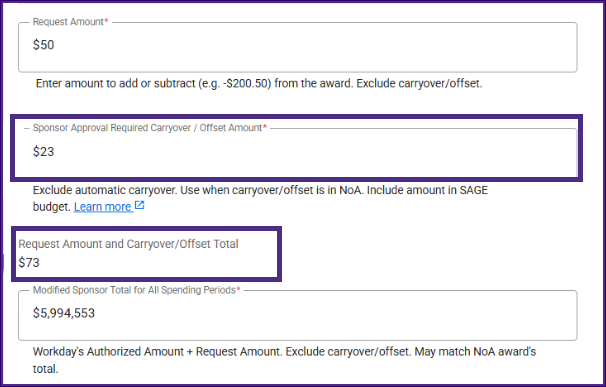
Note that this new field should not be used for automatic carryforward. It is only used when approved by the sponsor as part of the NoA.
When the NoA includes carryover/offset, MOD preparers will need to take the following steps:
- In the SAGE Budget that will be connected to the Modification Request…
- Include the carryover/offset amount in the supplement/extension period.
- In the Modification Request…
- Select the carryover subcategory.
- Enter the carryover/offset amount in the new carryover/offset field.
New Field: Related Grant Worktag for a Modification Budget
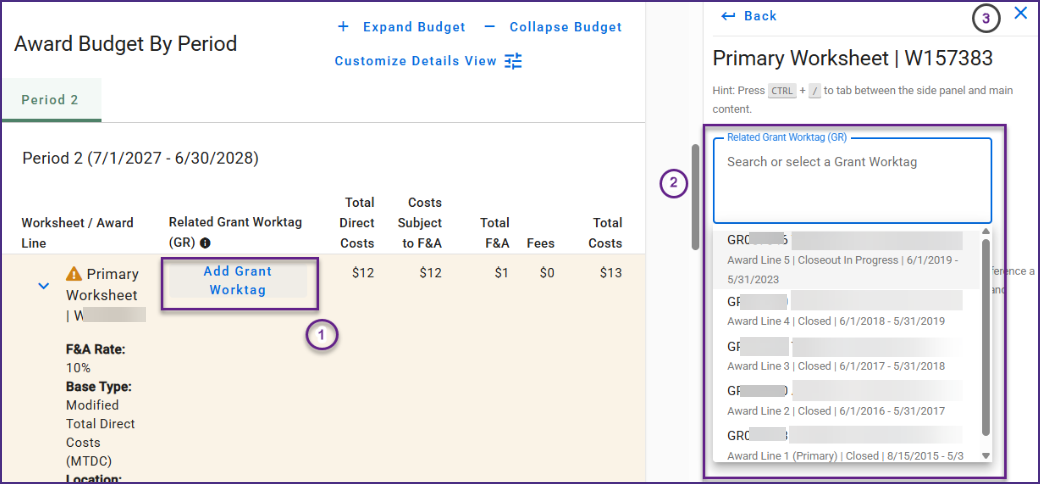
When a modification includes funding, on the Budget & Award Lines page users will select which related Grant Worktag from the Workday award is associated with the budget worksheets shown on the modification. This will communicate more clearly to GCA which current award line is related to the budget worksheet.
Select the Add Grant Worktag link to view the right side-panel grant selection.
Select the Related Grant Worktag box, and existing grants will display. Either scroll and select from the list, or type in part of the grant number then select the grant.
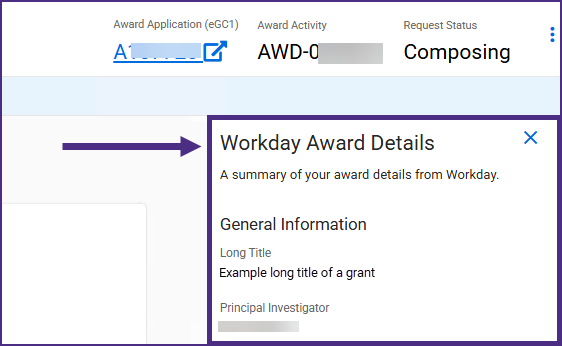
After selecting the related worktag, click the X in the upper right to close the side panel, or click the Back link to display the Workday Award Details panel.
Once the grant has been selected, it displays on the main worksheet row. An Edit Grant Worktag link allows users to change the selected grant as needed.
GCA will review grant worktag selections and have the ability to update incorrect selections.
Integration Options Selection (SAGE Central, GCA Only)
When a supplement extension with separate year accountability modification is routed, GCA will have the option of integrating the modification to Workday, saving significant manual entry time.
GCA will confirm if a new award line should be set up–or, in cases where a renewal advance exists, GCA will have an option to update the existing award line established with the advance.
More On-Screen Help Text and Guidance Added
On-screen text and required field markers will guide SAGE users through data entry and link to helpful resources.
Expanded Validations
With the new changes to the Modification Request, validations have been expanded to help guide users through new field requirements. Below is a summary of the new validations and requirements that will display as data is entered or on the Review and Submit page.
For any MOD with a connected budget:
- The standard required SAGE Budget fields must be completed (cost center, grant security hierarchy, SPA type, PI).
When the Carryover subcategory is selected:
- The carryover/offset amount on the General Information page is required and must be a non-zero amount.
When the Supplement subcategory is selected:
- The Request Amount on the General Information page is required and must be greater than $0.
- The modified sponsor total for all spending periods on the General Information page is required and cannot be a negative amount.
- The award line/budget period start and end dates on the General Information page are required.
When the Supplement & Extension subcategories are selected, for an award with separate year accountability required:
- The SAGE Budget total must match the Request Amount + Carryover/offset amount on the General Information page.
- The award line/budget period start and end dates on the General Information page must align with the period dates in SAGE Budget for selected periods on the MOD.
- The period name in the SAGE Budget cannot match an existing Workday period name. In this case, the MOD should be setting up new periods only.
Advance Request
Loading Status Message Displays During Advance Creation
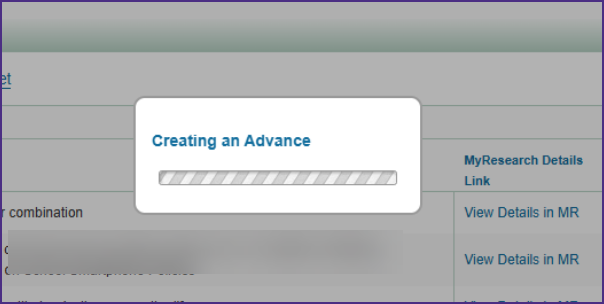
When creating a new Advance Request, a notification now displays “Creating an Advance” and a loading status after selecting the button. Users will no longer be able to double-click and mistakenly create two advances.
Updated Documentation
The following SAGE Suite documentation pages have been updated as part of this release:
Reminders & How to Get Help
We previously sent out guidance on best practices for naming MOD budget periods; please review naming budget periods guidance to ensure quicker processing of your awards and reduce returns.
If you have any questions or encounter issues, please reach out to sagehelp@uw.edu. You may also request a Teams video support session if you would prefer to screenshare while working directly with a SAGE expert.