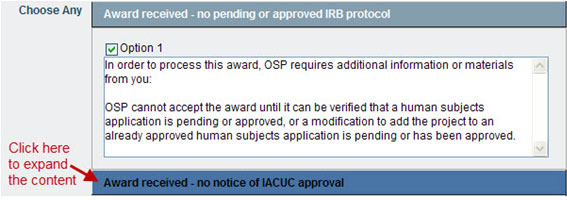
Note: the same dialog displays for Approvals and Returns. For details on approving, see the Approve an Application article
Occasionally, you must return an application to the campus preparers so they can make corrections, provide more information, or mark the proposal “ready to submit.” When you return an application, it stops routing, and becomes editable so that the eGC1 owner or preparer can make the changes you request. The system add your return comments to an email notification to the PI, Administrative Contact, Pre-Award Budget Contact, and eGC1 Preparer.
Note: Do not return an application if the only change needed is to add an ad hoc reviewer to the Approval Flow. Preparers cannot add ad hoc reviewers when the eGC1’s status is Returned or Withdrawn. Instead, you could use the Auto-Generated Document “Application Review Notice” to request the change to the Approval Flow.
To return an application
- From the open Application, click Approve/Return in the left navigation menu.
- Under OSP Notes, enter any comments about why you are returning the application. You must enter comments when you return an application. The system includes them in the email notification to the research team.
- Scroll to the bottom of the window, and click Return to PI.
When you complete the return process:
- The application status changes from “In OSP” to “Returned”;
- The OSP node on the approval graph changes to pink and the application displays a pink “Returned” banner on its pages;
- The system sends an email notification to the application owners (PI, preparer, contacts) with your changes comments.
Tips
- To monitor activity on a returned application, adjust your Application tasklist to display applications with a status of “Returned.”
- E-mail Notifications: When you return an application, the system includes your comments in the email notification sent to the owners to alert them to the needed changes. Owners are the eGC1 preparer, PI, Administrative Contact, and Pre-Award Budget Contact.
- Owners may only add an ad hoc reviewer when an eGC1 is in routing or in OSP, so do not return an eGC1 if the only change needed is to add an ad hoc reviewer to the approval flow.
- Changes in Assignments
- When the preparer re-completes a returned or withdrawn application, the system re-evaluates the group/team assignment.
- The system does not change the assigned person so that the item returns to the person who last worked on it, and who can then reassign it if needed.
Applications: FCOI JIT Process Change
- With the creation of a new Just-In-Time flag being added to the Pre-Award Notification, the Just-In-Time button in the application Sponsor Decision window has been removed.
- The FCOI Just-In-Time email notification has been updated to send upon a new JIT flag being set on a Pre-Award Notification, or, upon the creation of a Funding Action. The primary contacts on the eGC1 will now only receive the FCOI JIT email once, rather than anytime the contacts listed on the eGC1 change.
Grant Runner Applications – Print Preview of Grants.gov Forms
In order to provide OSP reviewers with an alternative way of viewing Grant Runner forms, a PDF print preview feature has been added to the upper task bar of each Grant Runner form, merging the data into the familiar Grants.Gov form. Users may find this a helpful way of viewing Grant Runner forms and eGC1 details side-by-side.
At this time, users can print the Grant Runner forms individually. ORIS is working on a feature that will allow for printing of the entire Grant Runner form set in a single PDF. That feature will be released at a later date.
Please note there is a known defect with the PDF not showing attachment names. Until this issue is resolved, users should refer to the SPAERC Grant Runner form to open and view attachments.
Auto-Generated Documents
- The eGC1 Preparer will now be included as a recipient of the following auto-generated email notifications:
- Application Review Notice
- Notice of Award
- Request for Activation Notice for Fellowships
Funding Actions (FA)
- In order to apply the uniform guidance requirements with more clarity and consistency, the Sponsor Award Date on the Funding Action is now required prior to it being sent to GCA.
Pre-Award Notifications (PAN)
- A new Notification Type of “Just-In-Time” has been added to the PAN so that OSP staff can correctly identify the content of the sponsor fundable score notification received, and facilitate earlier communication of just-in-time to other compliance offices such as the Office of Animal Welfare (OAW).
Subcontracts
- A new Subcontract Title field has been added to Subcontract shell so that the OSP Subcontracts team can more easily identify particular subcontracts by name, and to facilitate future automation of federal reporting.
- The Subcontracts tasklist can be sorted and filtered by the new Subcontract Title field.
- A new Subcontract Action type of “Non-Contractual Revision” has been added to identify those SAs related to PAS/ARIBA transitions.
The following updates were released on July 25th, 2013:
- The answer to the Ready to Submit question now displays on the SPAERC control sheet and the Attachments and Routing page for all application types.
- Navigational menus/links no longer display on popup windows such as auto-generated email draft windows.
- When the parent item of an Admin Action is changed, the Action text now reflects the appropriate Admin Action number.
- The SPAERC Task list now displays values for “Yes” and “N/A” in the Paper column.
- When updating FA, AA, and SC attachments the current description will display in the description field and be editable.
- Subcontracts will now appear on the Cycle Details page after every FA they are associated with, as they do on the Cycles Details flyout.
- Auto-generated document fields in SPAERC now have single spacing between lines of text entered.
- If an application’s initial sponsor is changed from RRF or to RRF, when the eGC1 is re-submitted, it will be appropriately re-assigned.
- Now you can directly re-parent an application which is the child of another application in the same cycle.
- For Grant Runner eGC1s that are connected to SAGE Budgets, the irrelevant Approved Attachments links have been removed from the History & Comments page and the Grants.gov Tracking History section of the GR Submission & Status page for actions associated with the submission steps (Name is Grants.gov).
- The “Change Action Type” drop down menu no longer includes “Post Award Change” as an option for FAs that have a parent (eGC1). This modification will enforce the parenting rules that have been established.
- On the Admin Actions’ Auto Generated Documents page, the email instructions label was changed to “SFI Compliance Notification”.