Note: the same dialog displays for Approvals and Returns. For details on approving, see the Approve an Application article
Occasionally, you must return an application to the campus preparers so they can make corrections, provide more information, or mark the proposal “ready to submit.” When you return an application, it stops routing, and becomes editable so that the eGC1 owner or preparer can make the changes you request. The system add your return comments to an email notification to the PI, Administrative Contact, Pre-Award Budget Contact, and eGC1 Preparer.
Note: Do not return an application if the only change needed is to add an ad hoc reviewer to the Approval Flow. Preparers cannot add ad hoc reviewers when the eGC1’s status is Returned or Withdrawn. Instead, you could use the Auto-Generated Document “Application Review Notice” to request the change to the Approval Flow.
To return an application
- From the open Application, click Approve/Return in the left navigation menu.
- Under OSP Notes, enter any comments about why you are returning the application. You must enter comments when you return an application. The system includes them in the email notification to the research team.
- Scroll to the bottom of the window, and click Return to PI.
When you complete the return process:
- The application status changes from “In OSP” to “Returned”;
- The OSP node on the approval graph changes to pink and the application displays a pink “Returned” banner on its pages;
- The system sends an email notification to the application owners (PI, preparer, contacts) with your changes comments.
Tips
- To monitor activity on a returned application, adjust your Application tasklist to display applications with a status of “Returned.”
- E-mail Notifications: When you return an application, the system includes your comments in the email notification sent to the owners to alert them to the needed changes. Owners are the eGC1 preparer, PI, Administrative Contact, and Pre-Award Budget Contact.
- Owners may only add an ad hoc reviewer when an eGC1 is in routing or in OSP, so do not return an eGC1 if the only change needed is to add an ad hoc reviewer to the approval flow.
- Changes in Assignments
- When the preparer re-completes a returned or withdrawn application, the system re-evaluates the group/team assignment.
- The system does not change the assigned person so that the item returns to the person who last worked on it, and who can then reassign it if needed.
You can use the left navigation menu of an open application to review its various pages. Each page of the application provides information to carry out a full review of the proposed sponsored project.
| Page |
Description |
| Control Sheet |
This page displays a select set of information from the application as a quick reference. |
| Details |
Includes titles, dates, organization code receiving funding, project details, sponsor, and originating sponsor. The eGC1 preparer
- inputs the titles, dates, copies needed, sponsor information, and any additional information for existing applications or awards.
- selects the organization code from a list limited to department-level codes, and the system populates the corresponding box number.
- selects the application type, project type, and sponsored activity type from defined lists; checks, if appropriate the ATF box.
- selects Sponsor from a sponsor database maintained by OSP, which also defines the sponsor type. and adds an Originating Sponsor, if appropriate.
- adds any additional information for existing application or award
|
| PI, Personnel, & Organizations |
Lists the PI and other research personnel. The system verifies that the person selected for PI has a SAGE PI ASTRA role. For each person, the system displays Investigator status, Significant Financial Interest (SFI), and Compliance Details. Applications that are Post-Approval may display Post-Approval Personnel Changes.
The preparer may indicate any interdisciplinary organization units or other units that should be added to the approval graph for Joint Appointment Unit, TBA Personnel Unit, Space and/or Resources, or Other.
This page is always read-only. |
| Contacts & Assign Access |
Lists the Administrative Contract and the Pre-Award Budget Contact, both of whom are optional. In the access section, the preparer (creator) and/or owners (contacts and PI) are listed. One person may hold more than one of these roles. An application owner may give another person read-only or read/write access to a specific application; they also display here. This page is always read-only. If the preparer link the application to a SAGE Budget, the Budget Preparer also displays. |
| Abstract & RFA/RFP |
Displays the abstract and the Request for Application/Proposal or Program Announcement information. The preparer must complete the RFA/RFP section, but may enter text such as “not applicable.” If the application is a Grant Runner one, the system auto-populates this information. |
| Activity Locations |
Displays the locations where research activity will take place, any space planning (former FG-4 question), and any international activity locations (international question formerly on the Details page). This page is not editable in SPAERC.
The prepare either selects a location from the GeoSIMS databases or manually adds one. The preparer answers yes or no for space planning and international involovement, and if yes, provides details. |
| Budget & Fiscal Compliance |
The Fiscal Compliance section contains questions about F&A costs, administrative and clerical costs, and cost sharing.
The eGC1 Budget section displays a summary of the budget for the application period and totals for all periods. The preparer may have entered the data directly, or linked a SAGE budget. If there is a linked budget, the budget name and ID will display. You can click the link to view the details. See the Budget section for more information. |
| Cost Sharing |
Indicates the types and amounts of any cost sharing. If the preparer selected “Yes” for Fiscal Compliance Question F3, they must enter cost sharing. |
| Non-Fiscal Compliance |
Shows the yes/no responses to the questions and any required explanations and additional questions. The research team’s responses to compliance questions affect the Approval workflow. |
| Attachments & Routing Questions |
There are sections for:
- Campus Notification (Ready for Pickup), used to send campus an email (for details, see the Ready for Pickup article)
- Application Documents Information which indicates if there are paper documents, and how the application will be submitted to the sponsor
- Several categories for documents attached to the application, or to related items such as Funding Actions
- There is a specific section for OSP uploaded documents
|
After you submit an application to the NIH which uses an Adobe form set, you can have the system automatically update the submission status information. This information displays in both SPAERC and SAGE.
To request the status updates, your application must
- have a status of In OSP
- have a post-submission Grants.gov tracking number
To start the process:
- Open and unlock the application
- Click on the Status tab
- Enter the complete tracking number (GRANT plus all digits) in the text box.
- Click the “Receive Adobe Status Updates” button to start the process.
Information about the submission status will display on the application’s Status page and the History & Comments page.
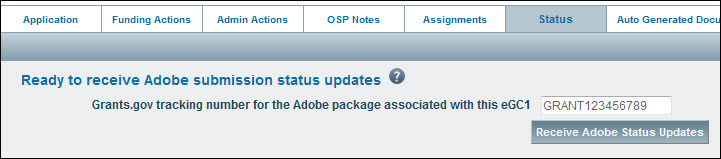
Status updates will begin to flow through to SPAERC within 10 minutes. SPAERC users can edit the Grants.Gov tracking ID while the application is still in “In OSP” status. Once you approve the application, you can no longer edit the tracking ID. If you need to change the tracking ID of an approved application, contact the SAGE Help Desk.
Receiving the status updates will also cause the Adobe Submission icon to appear on the tasklist for the application.
This chart describes when and to whom the SPAERC system sends email notifications. The content of the auto-generated emails varies depending on the choices the sender makes. Select a link in the Email Type column to display an example of the email contents.
| Email Type |
Purpose |
Triggers |
Sent To |
| Application Returned |
To inform owners that their eGC1 application they submitted has been returned by OSP. |
When an eGC1 application is returned by OSP |
Principal Investigator, Administrative Contact, Pre-Award Budget Contact, and eGC1 Preparer |
| Application Review Notice |
To send review comments |
Email sent manually by OSP (auto-generated document) |
Principal Investigator, Administrative Contact, Pre-Award Budget Contact, and eGC1 Preparer |
| Ready for Pickup |
To inform owners that all signed and scanned documents are uploaded to an application and are ready for pickup for review. |
OSP can send the notification by clicking the Ready for Pickup button once they know all signed and scanned documents are uploaded to the application. |
Principal Investigator, Application PI, Administrative Contact, and Pre-Award Budget Contact |
| Sponsor Deadline |
Reminder email sent if the application’s value for the Ready to Submit question is “No.” If the value changes to “Yes” within the six-to-three day timeline, the email is no longer sent. NOTE: This email is not sent if the application is after-the-fact or a clinical trial. |
Each day (at 6:00 AM), the system checks for any applications that are between six and three business days prior to their sponsor deadline with the application’s value for Ready to Submit as “No.” |
Principal Investigator, Administrative Contact, Pre-Award Budget Contact, and eGC1 Preparer |
| Subaward Request Returned |
To inform the Subaward Preparer that a request they submitted has been returned by OSP. |
When a subaward request is returned by OSP |
Subaward Preparer |
| Notice of Award (Funding Action) |
To send information about the award received |
Email sent manually by OSP (auto-generated document) |
Principal Investigator, Administrative Contact, Pre-Award Budget Contact, and eGC1 Preparer |
| Request for Activation Notice – fellowships (Funding Action) |
To notify the PI of a fellowship award and request the PI to complete the Activation Notice |
Email sent manually by OSP (auto-generated document) |
Principal Investigator (cc’d) |
| SFI Compliance Notification (Admin Action) |
To the PI concerning SFI disclosure for a budget extension |
Email sent manually by OSP (auto-generated document) |
Principal Investigator, Administrative Contact, Office of Research SFI Reviewers |
| Email Notification (Subaward) |
To the PI with subaward attachments to be reviewed and/or acted on |
Email sent manually by OSP (auto-generated document) |
Principal Investigator |
The first page you see when you open an application is the Control Sheet. The Control Sheet is a SPAERC-only page that provides a quick overview of the application for your reference.
You can navigate back to the Control Sheet at any time by clicking Control Sheet in the left navigation menu.
| Control Sheet Value |
Source |
| Details |
| Application number |
Details page: system-generated |
| Sponsor deadline |
Details page: preparer entered |
| Paper to OSP |
Attachments & Routing Questions page: Answer to “Will paper documents be submitted to OSP in support of this application?” |
| Electronic to sponsor |
Attachments & Routing Questions page: Answer to “Will sponsor documents be submitted electronically to the sponsor?” |
| Ready to Submit |
Attachments & Routing Questions page: Answer to “Is this application ready to be submitted to the sponsor by OSP?” |
| Assigned reviewer |
System-generated |
| Assigned group/team |
System-generated |
| Principal Investigator |
| Name, EIN (Employee Identification Number), Title |
PI, Personnel, & Organizations page: preparer looked up PI, system populated details |
| Org Code Receiving Funding |
| Org Code |
Details page: preparer looked up code, system populated details |
| Sponsor |
| Sponsor Name, Type, Parent name |
Details page: preparer looked up sponsor, system populated type and parent |
| Originating Sponsor |
| Flow-through funding |
Details page: Answer to originating sponsor question once Sponsor is selected; if Yes, the following fields appear |
| Originating Sponsor Name, Type, Parent name |
Details page: preparer looked up originating sponsor, system populated type and parent |
| Application Details |
| Long title, Short title |
Details page: preparer entered |
| Requested Start and End Dates |
Details page: preparer entered |
| Application Type |
Details page: preparer selected from list |
| Project type |
Details page: preparer selected from list |
| Sponsored Program Activity Type |
Details page: preparer selected from list |
| Clinical Trial Phase |
Non-Fiscal Compliance page: Answer to question HS-1C |
| Budget & Fiscal Compliance |
| Non-Standard F&A Rate |
Budget & Fiscal Compliance page: Answer to question F1 |
| Administrative or Clerical Support |
Budget & Fiscal Compliance page: Answer to question F2 |
| Total amount, First period amount requested |
Budget & Fiscal Compliance page: system calculated totals from page entries or linked budget |
| F&A cost rate |
Budget & Fiscal Compliance page: preparer entered directly, or in linked budget |
| Cost Sharing Information |
| Mandatory, Committed, and Total amount |
Cost Sharing page: preparer entered, total calculated by system |
| Other Information |
| Human subjects |
Non-Fiscal Compliance page: Answer to HS-1 |
| Animal use |
Non-Fiscal Compliance page: Answer to AU-1 |
| Personnel SFI |
PI, Personnel, & Organizations page: based on SFI values for the PI and any personnel; if any value is yes, the Control Sheet value is yes. |
| Subcontracts |
Budget & Fiscal Compliance page: answer based on presence of 03-62 line item(s) |
| eGC1 Campus Comments |
Comments entered by the eGC1 preparer for campus and OSP reviewers. In SAGE, these notes are called “Additional Information” and users add them on the Certify & Route page. These comments will also be added to the History & Comments section upon initial routing. If campus makes edits to the Additional Information section, the edits would only be seen in the eGC1 Campus Comments section and no additional comment will be added to the History & Comments section. |
| OSP Notes History |
The same data as on the OSP Notes page, presented here for convenience. |