Overview
Information about the study team is captured in 2 different locations that are treated differently by Zipline.
1: Study Roles and Qualifications
- Captured in the IRB Protocol form for UW reviewed studies- HSD strongly encourages researchers to describe the general study role rather than list a specific individual
Requires a standard study modification [1] to update after the initial application is approved
2: Zipline Access
- Users must be listed on the Local Study Team Members SmartForm page in the Zipline application to have edit access to Zipline and be added as a PI proxy
- The user must be registered in Zipline
- Study team members who do not need to access the Zipline application do not need to be listed
- Requires an administrative study team modification submitted by the PI or a current PI proxy to add or remove Zipline access after the initial application is approved (see instructions below)
- Updating the primary contact or adding someone to the guest list may be sufficient depending on the situation. For more information go to Manage Study Access [2].
How to Update Zipline Access
In the study workspace, click Modify Study
- For External IRB Studies: Click Create Site Modification
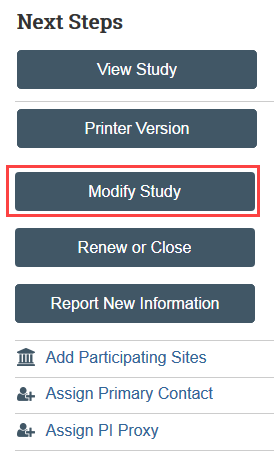
- Select Modification/Update as the purpose of the submission
- Select Study Team Member information as the modification scope and click Continue
- For UW reviewed studies, if other changes are needed as a result of the study team member update, such as updates to the consent forms, also select “Other parts” as the modification scope.
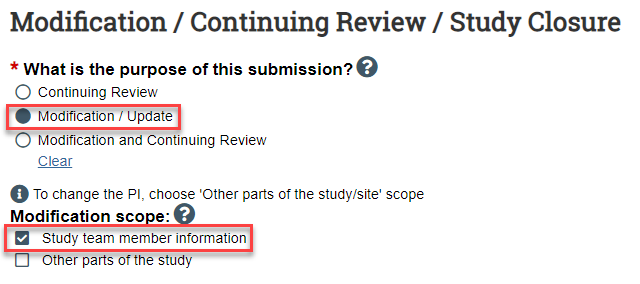
- Note that you are updating the study team on this page
- Click Continue when you are finished
- Add or remove people from the study team to manage access to the application
- To Remove Someone: Click the X next to their name
- To Add Someone:
- Click Add
- Select the team member in the study team member field

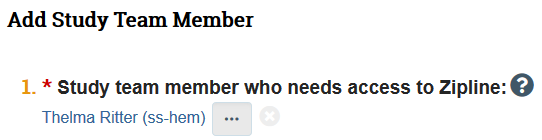
- Click OK in the Add Study Team Member window

- Click Save and Exit/Finish to exit the SmartForm
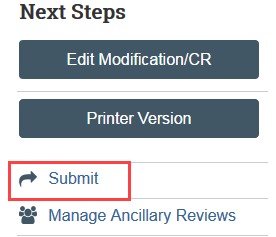
- Click Submit to send the modification to HSD for review
Update Zipline Access for Single Site External IRB Studies and External IRB Studies Created Before January 7, 2020
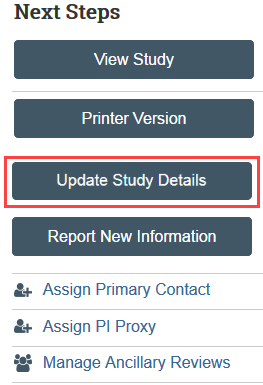
- Click Update Study Details in the site workspace
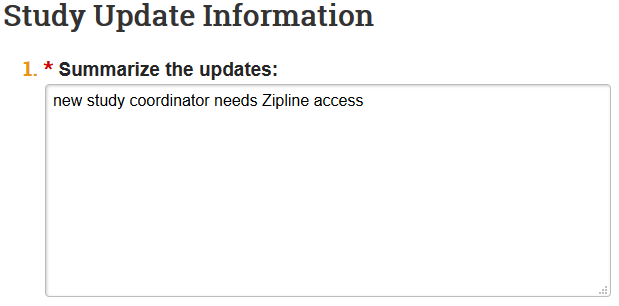
- Indicate that there is a study team change in the update summary and click Continue
- You are now in a draft version of the study SmartForm and should be on the Basic Information page. Update the draft version of the study to reflect the study team change.
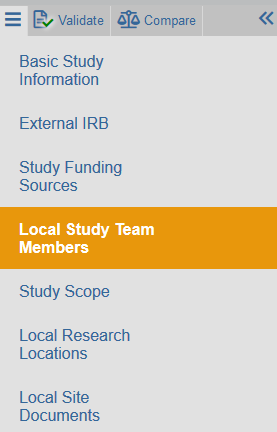
- Go to the Local Study Team Members SmartForm page and add or remove people from the study team
- To Remove Someone: Click the X next to their name
- To Add Someone:
- Click Add
- Select the team member in the study team member field
- Click OK in the Add Study Team Member window
- Click Save and Exit out of the draft SmartForm once your changes are complete
- Email hsdrely@uw.edu [4] when the update is complete. HSD staff will finalize the update after your change has been assessed.