Table of Contents
- Before You Begin [1]
- Steps for Adding Relying Sites [5]
- Step 1: HSD Creates Sites in Zipline [6]
- Step 2: Researcher Prepares Site-Specific Materials [7]
- Step 3: Navigate to the SITE Submission in Zipline [8]
- Step 4: Edit SITE to Complete Forms and Upload Documents [9]
- Step 5: Add Comment Notifying HSD Materials are Ready for Review [10]
- Step 6: If Additional Action Needed- HSD Notifies You Via Comment [11]
- What to Expect After Submitting [12]
Before You Begin
Site submissions are only created for multi-institutional studies where the UW is reviewing the activities of one or more other institutions. The site submission only addresses the involvement of the relying institution, and it is approved separately from the overall study. The overall study must be approved before the relying sites can be created.
To learn more about when UW should review for other involved institutions, visit UW IRB as a Single IRB [13]. Contact hsdrely@uw.edu [14] with any questions.
The process begins with the study application [15]. Make sure that you’ve indicated that the UW should review for other institutions on the study Basic Information SmartForm. Additionally, you’ll need to fill out the SUPPLEMENT Multi-site or Collaborative Research [16] and attach it to the study application in Zipline. HSD uses this information to establish reliance agreements and initiate the SITE review process in Zipline.
Watch this video for a short overview of adding a new site to an approved multi-institutional study in Zipline:
Steps for Adding Relying Sites
HSD staff create a SITE submission for each relying institution after the overall study is approved using the information in the SUPPLEMENT Multi-site or Collaborative Research. HSD staff will send a notification, like an email or Zipline comment, when you can begin work on the SITE submissions.
HSD recommends that you prepare your site-specific materials before completing the Zipline SITE submission:
- SUPPLEMENT Site Application (Contact) [17] or SUPPLEMENT Site Application (No Contact) [18], depending on the nature of the research; and
- Any additional site-specific materials requested by HSD, such as a site-specific consent form.
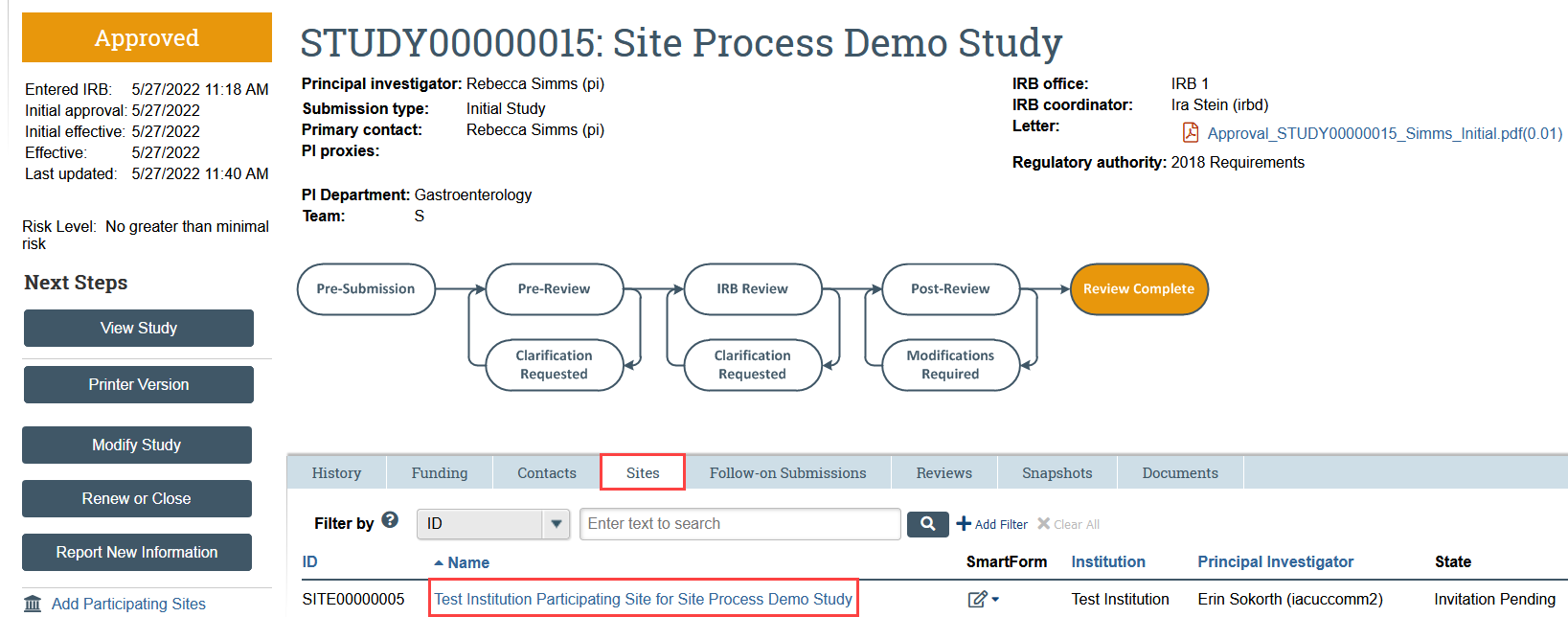
- In the approved Zipline STUDY, go to the Sites tab and click the name of the site
- SITE submissions will be in Invitation Pending state and so will not appear in My Inbox
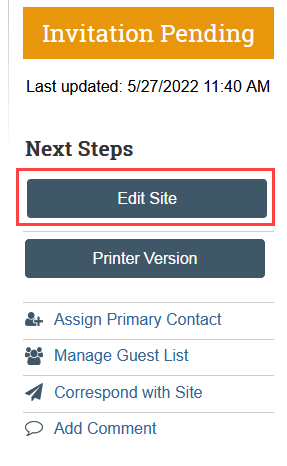
- Click Edit Site to complete the SmartForms and upload required documents
SmartForm Instructions for Relying SITES
| SmartForm Page & Attachments | Tips & Guidance |
|---|---|
| Basic Site Information Page No attachments |
Provide a summary of the research activities the site will conduct. Enter “ALL” if this site will perform all procedures in the protocol. |
| Additional Local Funding Sources Page Attachments:
|
This is rarely used. Skip page unless you have additional local funding that must be added. |
| Local Site Documents Page Attachments
|
Do not include documents that were reviewed as part of the STUDY application. Consent materials must be uploaded to this item to be watermarked. |
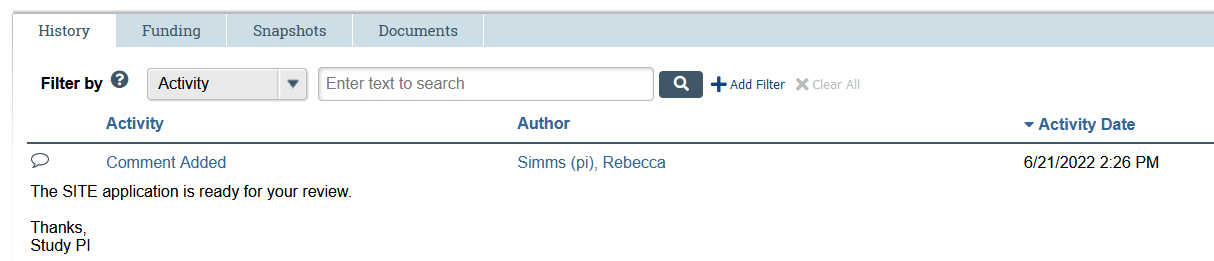
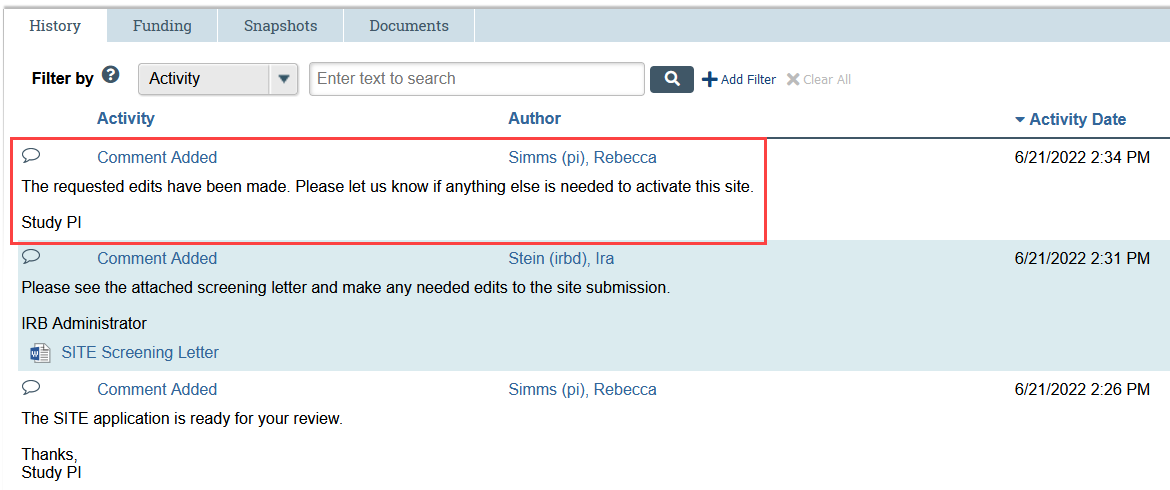
Because the site submission workflow in Zipline does not include a formal clarification request loop like most other submission types, HSD uses comments to communicate back and forth with researchers about their SITE submissions. The site submission should remain in Invitation Pending state throughout the review.

- When the materials are ready for review, notify HSD by adding a comment to the SITE submission and notifying the IRB Coordinator
- In Next Steps, select Add Comment
- Enter your message to HSD in the text box
- Check “IRB Coordinator” in the comment pop-up window to ensure that HSD is notified that the changes are complete.
- Select OK
- If you need to take additional action, HSD will notify you by adding a comment to the SITE submission
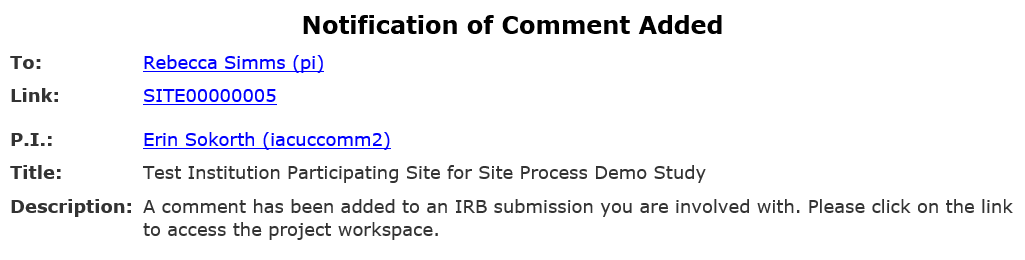
- You will receive an email notification that there is a comment on your SITE submission. Click the link in the notification to go directly to the submission and review the message from HSD.
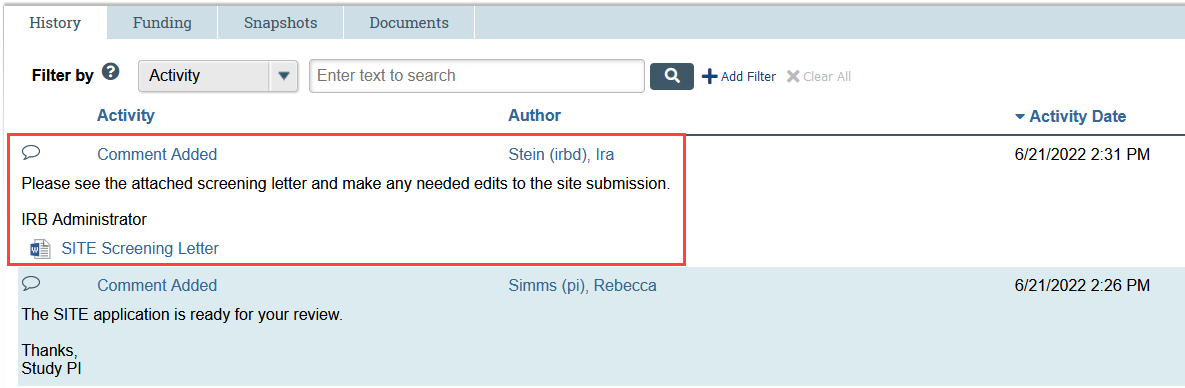
- Edit the SITE submission based on HSD’s comment
- When the materials are ready for review, notify HSD by adding a comment to the SITE submission. Check “IRB Coordinator” in the comment pop-up window to ensure that HSD is notified.
What to Expect After Submitting
When a site is activated, the UW PI, PI proxies, and primary contact receive an email notification. Once you have received this notification, you can find the site-specific approval letter in the SITE submission. The UW study team is responsible for notifying the site and providing all approved site materials.
For more information: